

Appearance
API Keys
API keys provide scoped programmatic access to selected prokube services without a browser session. Use them wherever a script, CI job, or external client calls a prokube service.
Each key can be scoped to specific services/workloads instead of the whole workspace, sent with either of two client authentication headers, and given an optional expiration date.
A key belongs to the workspace that was selected when it was created. prokube routes public API traffic through Agent Gateway, the shared routing and policy layer for API clients, but you do not need to configure Agent Gateway to create a key.
Use API keys when a workload or external client needs repeatable access without an interactive login. For browser-based work in the prokube UI, use your normal user session instead.
Manage Keys in the UI
Open API Keys from the sidebar under Serving. Select the workspace before creating or editing keys.
Regular users see only their own keys in the selected workspace. Administrators can see and manage all keys in the workspace.
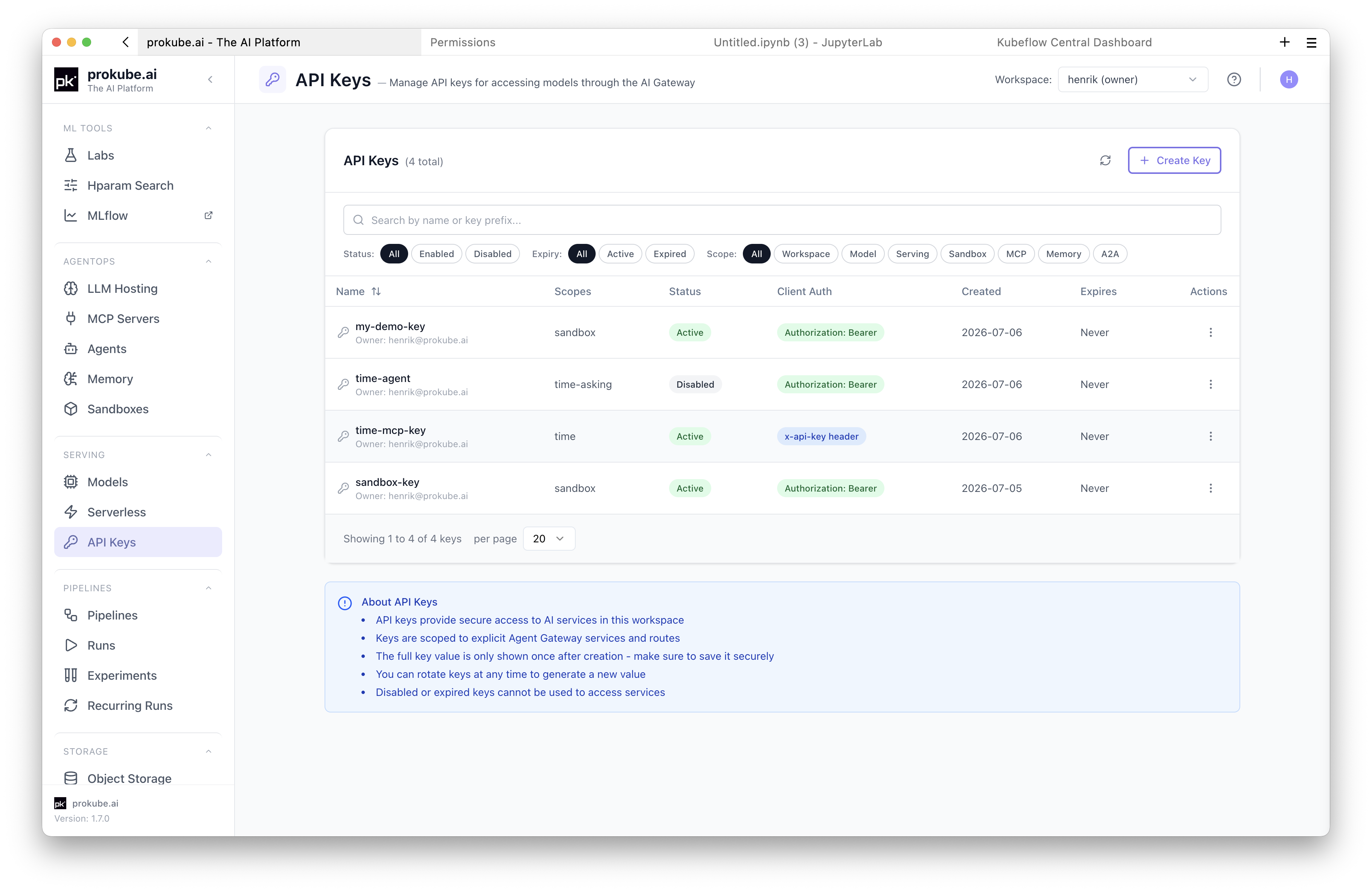
The table shows each key's metadata, such as owner, status, expiration, and scopes, but never the full key value. The key prefix helps identify which key a client is using without exposing the secret.
Ownership and Workspace Scope
API keys are scoped by both workspace and owner:
- A key can only grant access inside the workspace where it was created.
- Regular users can list, edit, rotate, disable, and delete only their own keys.
- Administrators can list and manage all keys in the selected workspace.
For shared automation, avoid personal long-lived keys where possible. Prefer a key created by the user or service account that owns the automation, and document where the secret is stored.
Create a Key
Click Create Key and fill in the form:
- Name: a descriptive name for the key.
- Description: optional context for who or what uses the key.
- Expiration Date: optional. Use expirations for automation keys unless there is a clear rotation process.
- Client Authentication: choose how clients send the key.
- Select Services: choose the services this key may access.
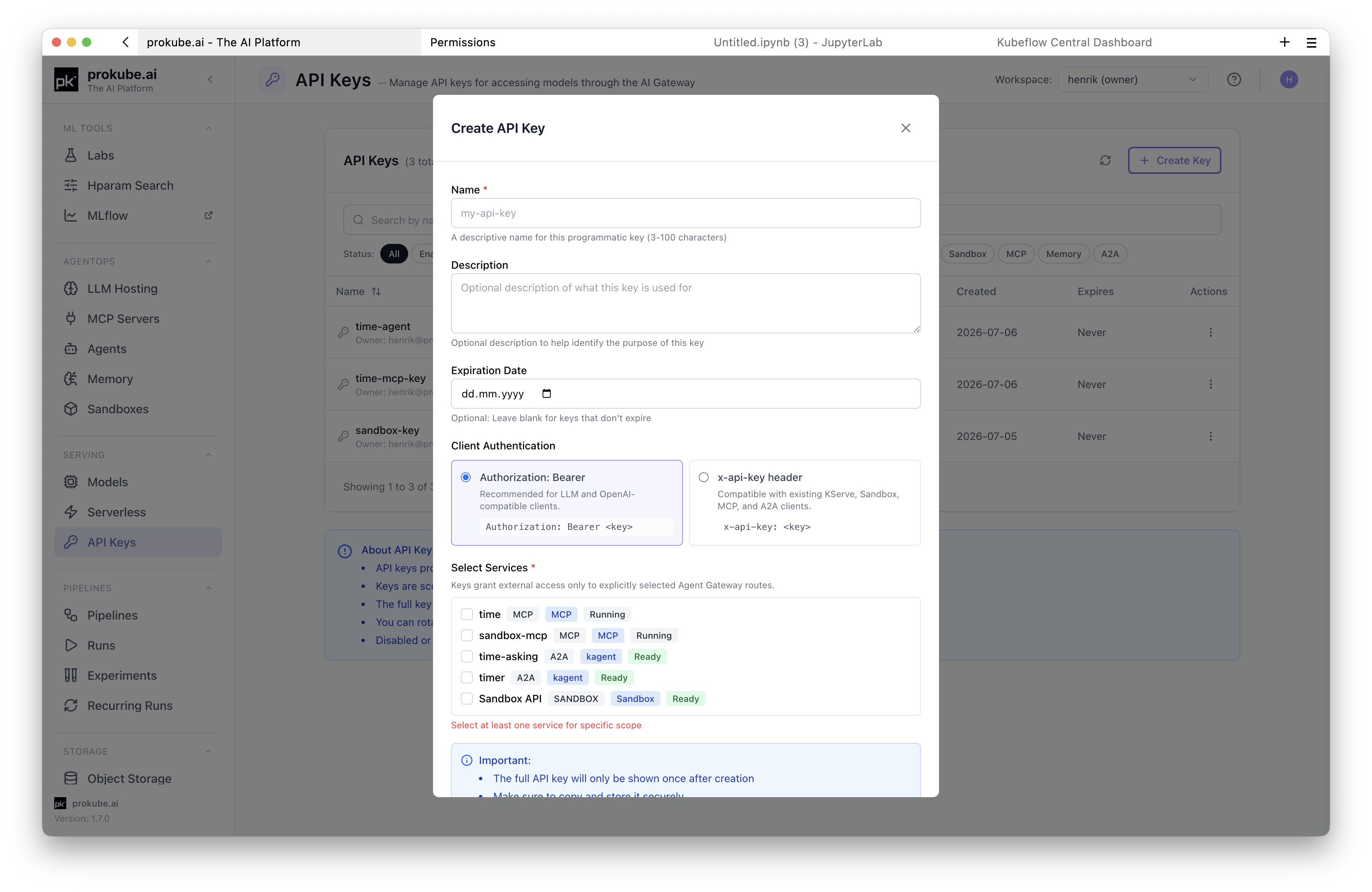
The service list is built from services available in the selected workspace. It can include:
- Models for KServe and LLM endpoints.
- MCP servers for tool access.
- Memory stores exposed through MCP-compatible routes.
- A2A agents for kagent agent-to-agent access.
- Knative services exposed through gateway routes.
Besides individual services, you can select aggregate scopes such as All MCP servers or All AI models. They also cover matching services created later. Full workspace access covers every service in the workspace. Keys with All AI models, All external AI models, or Full workspace access must use the Bearer format.
Admin-granted external models are not listed as individual services. To reach them, use a Bearer-format key with All external AI models, All AI models, or Full workspace access. These scopes cover every granted model in the workspace; a key cannot be limited to one granted model.
Select only the services the client needs. If no services are available, deploy or expose the service first, then create the key.
Service-specific scopes are the default choice for production clients. They reduce blast radius if a key is exposed and make it clear which integration depends on which platform service.
Client Authentication
Choose the authentication format expected by the client:
| Format | Use when |
|---|---|
Authorization: Bearer <key> | The client is OpenAI-compatible or expects bearer authentication. This is the recommended format for LLM clients. |
x-api-key: <key> | The client cannot set an Authorization header, or an existing integration already sends x-api-key. Not available for keys with All AI models, All external AI models, or Full workspace access. |
Use the service page for the exact URL and request body. Examples:
OpenAI-compatible model clients commonly use bearer authentication. For a model deployed through LLM Serving, <route-id> is the deployment name; for an admin-granted external model, it is the route ID chosen in the grant:
bash
curl "https://<your-prokube-domain>/svc/ai/<workspace>/models/<route-id>/v1/chat/completions" \
  -H "Authorization: Bearer <api-key>" \
  -H "Content-Type: application/json" \
  -d '{"model":"<model>","messages":[{"role":"user","content":"Hello"}]}'
MCP clients take the key in their server configuration. The MCP server's Overview tab in the prokube UI shows a ready-to-copy configuration:
json
{
  "mcpServers": {
    "<server>": {
      "type": "http",
      "url": "https://<your-prokube-domain>/svc/mcp/<workspace>/<server>",
      "headers": {
        "Authorization": "Bearer <api-key>"
      }
    }
  }
}
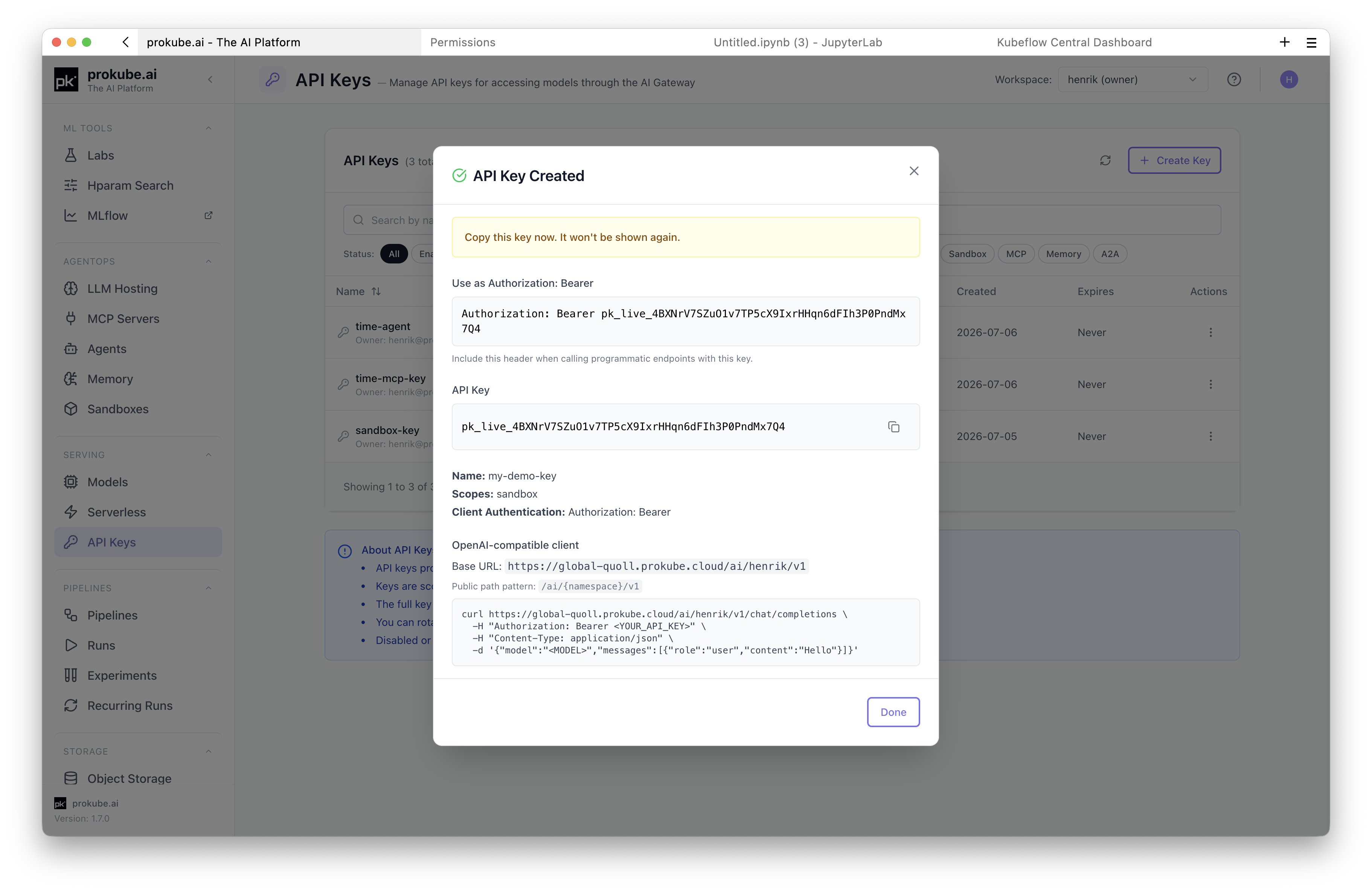
Copy the Key Value
prokube shows the full key value only after creation or rotation. Copy it immediately and store it in your secret manager.
If you close the dialog without copying the key, create a new key or rotate the existing key. The old full value cannot be recovered from the UI.
Manage Existing Keys
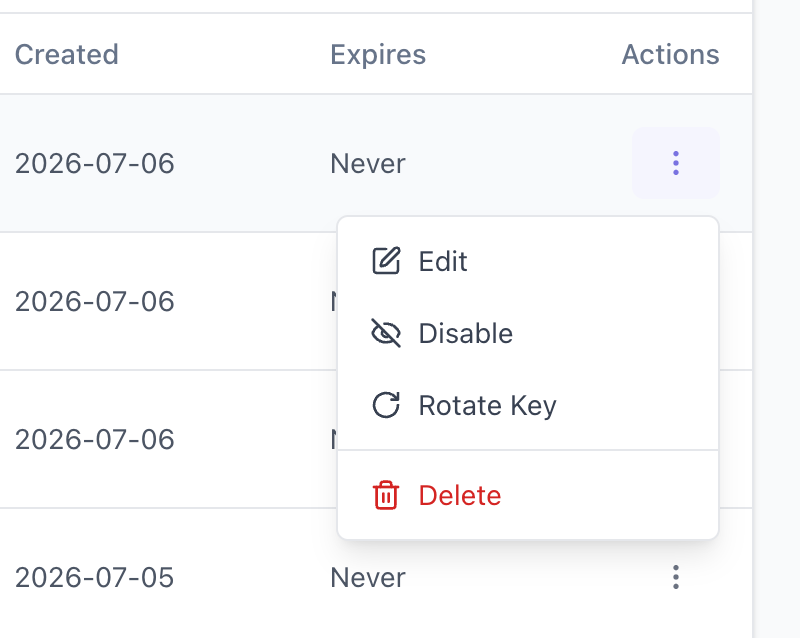
From the API Keys page you can:
- search keys by name or prefix;
- filter by status, expiration, and scope type;
- edit metadata, expiration, enabled state, and service scopes;
- disable, rotate, or delete keys.
Disable a key when you need temporary revocation or want to test whether a client still depends on it. Delete a key when it is no longer needed.
Rotating a key invalidates the old value immediately. Update every client or secret that uses the key before relying on the rotated value.
Usage Dashboard
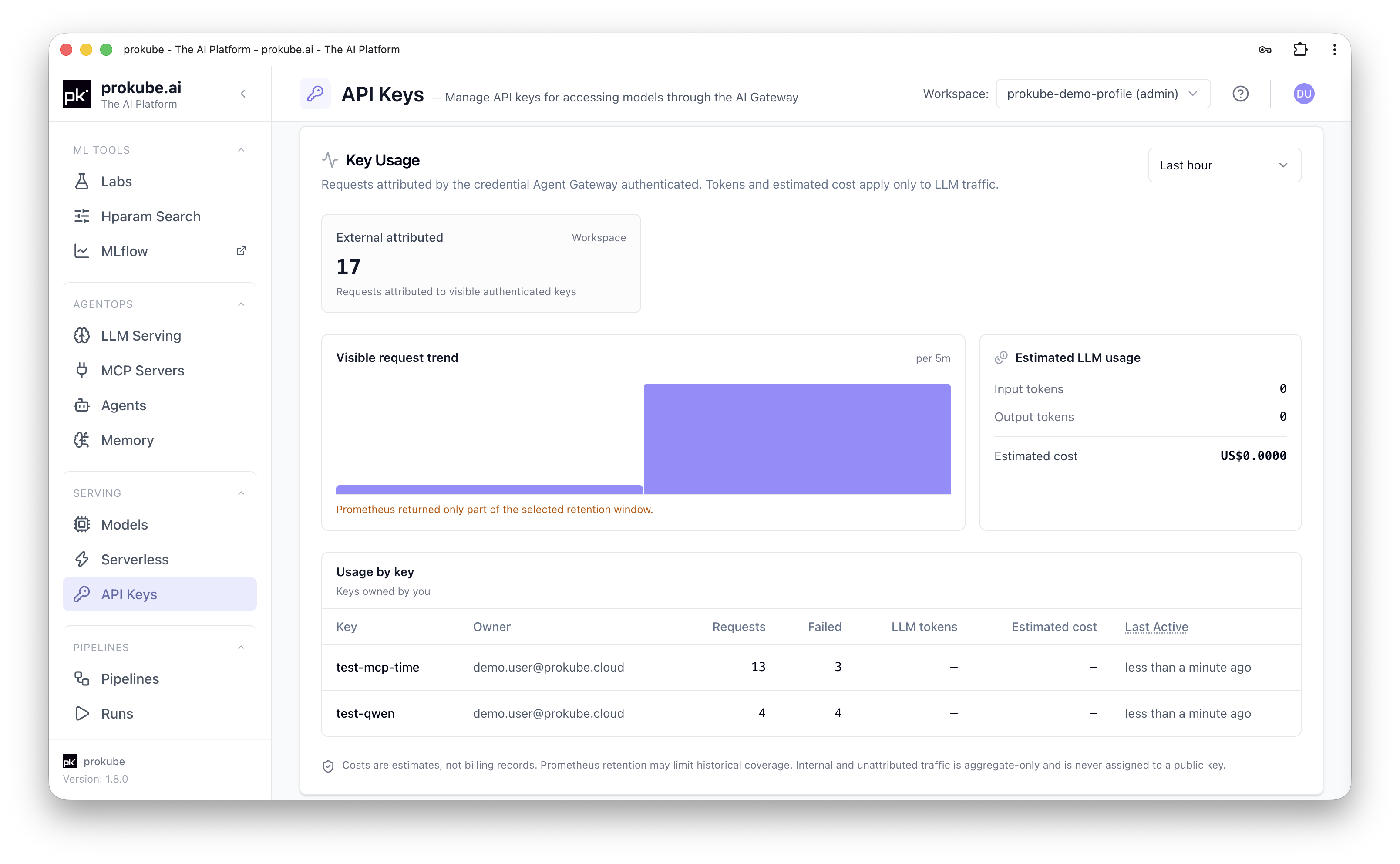
Switch to the Usage tab on the API Keys page to see how keys in the selected workspace are being used. The dashboard covers requests that Agent Gateway authenticated with a key. It does not cover internal in-mesh traffic (see Agent Gateway: Public vs. Internal Traffic).
Time Window and Cohorts
Choose a time window to control both the summary numbers and the request trend chart below them. Options are Last hour, Last 24 hours (default), Last 7 days, and Last 30 days.
The dashboard shows up to three cohort cards, split by how a request was attributed:
- External attributed: requests attributed to an authenticated key. This is the only cohort regular users see.
- Internal aggregate and Unattributed public: aggregate-only counts, visible to administrators. These are never distributed across individual keys, so they cannot be used to identify which key or workload generated a given request.
The request trend chart plots request volume per time bucket for the selected window. If Prometheus retained only part of the window, the dashboard shows a note that the trend is truncated rather than silently showing partial data as complete.
Token and Cost Estimate
The Estimated LLM usage panel shows input tokens, output tokens, and an estimated cost for LLM traffic in the window. Estimated cost is derived from a model pricing catalog:
- If pricing is missing for some models in the window, the panel notes that the estimate excludes those models.
- If no pricing data is available at all, the panel says catalog pricing is unavailable rather than showing a misleading total.
Token and cost figures apply only to LLM (/svc/ai) traffic. Other path families report request counts but not tokens or cost.
Usage by Key
The Usage by key table lists per-key activity for the window:
| Column | Meaning |
|---|---|
| Key | Key name. A deleted key that still has recorded usage shows as Historical rather than disappearing from the table. |
| Owner | The user who created the key. |
| Requests | Total requests attributed to the key in the window. |
| Failed | Requests that failed (non-2xx/3xx) in the window. |
| LLM tokens | Input + output tokens, for /svc/ai traffic only. |
| Estimated cost | Estimated cost for the key's LLM traffic in the window. |
| Last Active | Approximate time since the key's last recorded request, bounded by the selected window and its sampling granularity, not an exact last-used timestamp. |
Regular users see Keys owned by you. Administrators see All workspace keys. Keys with no recorded activity in the window are omitted, except historical (deleted) keys that administrators can still see for auditing.
Reading the Numbers Correctly
- Request counts, tokens, and cost are estimates for observability, not billing records.
- Prometheus retention limits how far back the dashboard can report. Older activity outside the retention window will not appear even if the key was used.
- If usage telemetry is not configured for the cluster, the dashboard shows a notice instead of numbers. Contact your administrator if you expect usage data and see this notice.
Security Guidance
- Prefer service-specific keys over broad workspace access.
- Set an expiration date for automation keys where possible.
- Store keys in a secret manager, not in source code, notebooks, screenshots, shell history, or issues.
- Rotate keys when ownership changes, a client is redeployed, or a key may have been exposed.
- Disable a key first if you need to test impact before deleting it.
- Delete keys that are no longer used.
Troubleshooting
| Symptom | Check |
|---|---|
| No services are available when creating a key | Confirm the target service exists in the selected workspace and is exposed through Agent Gateway-supported routes. |
| A key is not visible to another user in the same workspace | Regular users only see keys they created. Ask an administrator if shared visibility or management is required. |
Client receives 401 or 403 | Confirm the key is enabled, not expired, sent with the selected authentication header, and scoped to the target service. |
| Client can call one service but not another | The key is scoped to selected services. Edit the key or create a new key for the additional service. |
| Client stopped working after rotation | The old key value stopped working immediately. Update the client secret or environment variable with the new value. |