

Appearance
JupyterLab
JupyterLab Labs provide a browser-based Python workspace inside prokube. Use them for notebooks, data exploration, model development, and quick experiments that need the same storage, compute, and platform services as your production workloads.
prokube maintains its own JupyterLab images. Depending on the image, they come with Python packages and common CLI tools, S3-compatible file storage access, container image builds, and the public prokube/examples repository already set up. See What the prokube Images Add for details.
JupyterLab documentation
For JupyterLab features that are not specific to prokube, use the upstream JupyterLab documentation. Administrators who customize notebook images may also want the Kubeflow Notebooks documentation.
Getting Started
Create a JupyterLab Lab from the Labs page. The launch dialog uses the same basic options as other Labs: name, image, compute resources, storage, configurations, and security options.

For JupyterLab, the image choice mainly decides which Python and ML stack is available when the Lab starts. Choose an image that matches your workload rather than installing everything manually after startup.
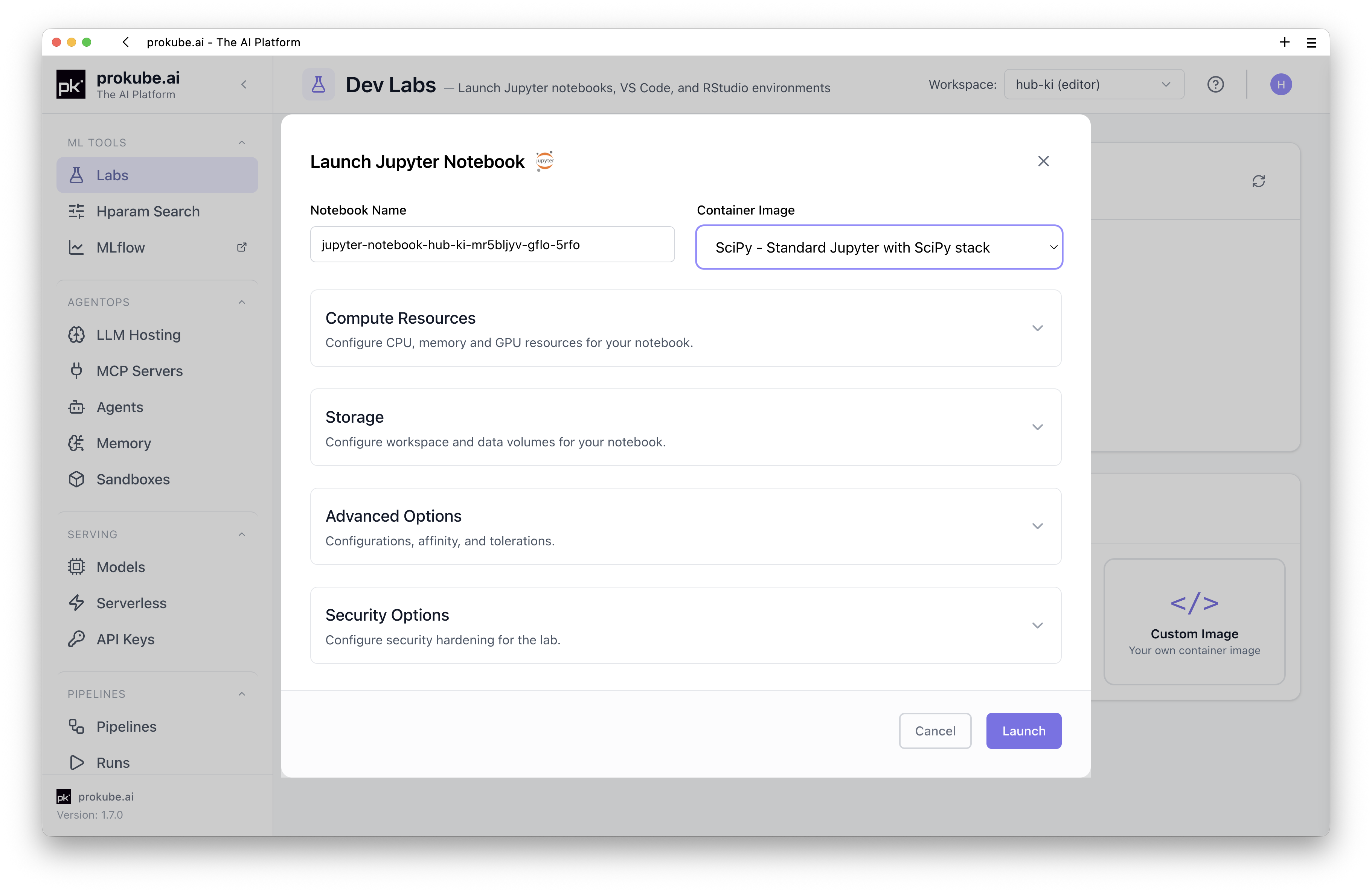
Typical image families include:
| Image family | Use when |
|---|---|
| SciPy | You need a general-purpose Python data science environment. |
| PyTorch | You develop or inspect PyTorch workloads. |
| PyTorch CUDA | You need PyTorch with GPU support. |
| TensorFlow | You develop or inspect TensorFlow workloads. |
| TensorFlow CUDA | You need TensorFlow with GPU support. |
Use Custom Notebooks if you need a controlled package stack, extra system libraries, or a custom web application instead of one of the standard images.
What the prokube Images Add
The default JupyterLab images include platform-oriented tooling requested in real user environments.
Included capabilities depend on the selected image, but the prokube-maintained images commonly include:
- command-line tools such as
kubectl,git,tmux,tree,ripgrep,fzf,htop,curl,make,gcc,nvim, andzsh; - Python tooling and SDKs used across the platform, including the Kubeflow Pipelines SDK, MLflow,
s3fs,pyarrow, debugging helpers, anduv; - S3-compatible file storage access through
rclone, with a preconfiguredminioremote where available; - optional S3 browsing in the JupyterLab sidebar for file-storage workflows;
- container image build support through Docker CLI and Buildx backed by a remote BuildKit service;
- automatic cloning of the public
prokube/examplesrepository into the Lab home directory on first start.
You can also use the JupyterLab terminal for CLI-based coding-agent tools when that fits your workflow, for example the OpenCode CLI, Claude Code, or similar tools. Install additional tools into the persistent home directory rather than the container filesystem; see Installing Tools Without Root.
Platform Access from Notebooks
A JupyterLab Lab runs inside your workspace as a Kubernetes Pod, so it can interact with the platform programmatically. Typical workflows include:
- starting Kubeflow Pipelines with the KFP SDK;
- running hyperparameter tuning or distributed computing experiments;
- reading and writing datasets or model artifacts in S3-compatible file storage;
- building container images for pipeline components or serving runtimes;
- using
kubectlto inspect workspace resources when your role allows it; - working through examples from the cloned
prokube/examplesrepository.

Examples repository
The public prokube/examples repository contains examples for notebooks, pipelines, serving, MLflow, hyperparameter tuning, RStudio, and related workflows. In the default notebook images it is cloned into the Lab home directory during startup if it is not already present.
JupyterLab uses the same persistence and package-installation model as other Labs. See Using Labs for the shared storage rules and Custom Notebooks for repeatable image-based environments.
File Storage in JupyterLab
prokube JupyterLab images can include an S3 browser extension for working with S3-compatible file storage directly from the JupyterLab sidebar.

The extension lets you browse buckets, upload and download files, copy S3 paths, and generate snippets for loading data with common Python libraries. The required S3 endpoint and credentials are provided through the workspace configuration, so users normally do not need to configure access manually.
For terminal, Python, and external-client access to S3-backed file storage, see File Storage.
Some workflows need custom container images, for example pipeline components, KServe predictors, custom model servers, or agent runtimes. For the shared image-building workflow and limitations, see Building Container Images.
When to Move Beyond JupyterLab
JupyterLab is best for interactive development and inspection. Move the workload into a production-oriented runtime once the work becomes repeatable:
- use Kubeflow Pipelines for scheduled or reproducible workflows;
- use MLflow for experiment tracking and model registry workflows;
- use model serving for inference endpoints;
- use AgentOps components for MCP servers and agents.