

Appearance
Labs
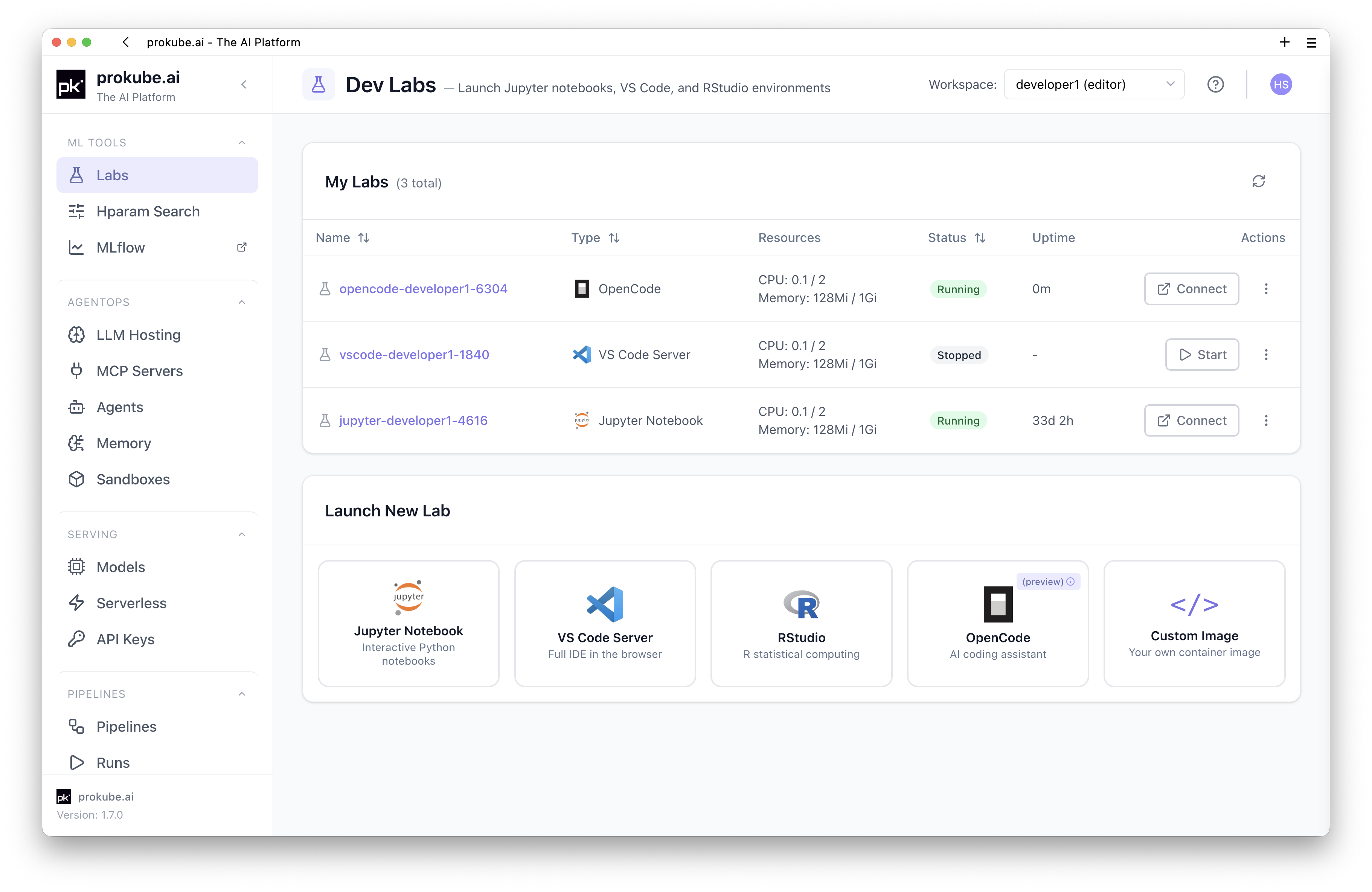
Labs are browser-based development environments with access to the compute resources, storage, credentials, and platform tools available in your workspace.
Kubeflow Notebooks documentation
Upstream reference: Kubeflow Notebooks documentation
You can work in a Lab without setting up a local development environment first. From a Lab, you reach other prokube tools programmatically through kubectl, SDKs, CLIs, and APIs. For example, you can launch pipelines, run hyperparameter tuning or distributed computing experiments, develop MCP servers, and test agent workflows.
In addition to preconfigured JupyterLab, VS Code, and RStudio images, Labs support AI-assisted coding: GitHub Copilot in VS Code, and OpenCode as a dedicated coding agent.
When to Use Labs
- You want a browser IDE with workspace storage and credentials already set up.
- You want coding agents to change code in the workspace instead of on your machine, and keep running when your laptop is closed or disconnected.
- You want to experiment on the same CPUs, GPUs, and volumes that production workloads use.
- You want to test platform integrations before packaging them for repeatable use.
Available Environments
| Environment | Typical use |
|---|---|
| JupyterLab | Python notebooks, data exploration, visualization, quick experiments |
| VS Code | Browser-based IDE workflows and local VS Code attachment to running notebook pods |
| RStudio | R notebooks, statistics workflows, and R package based analysis |
| OpenCode | Agent-assisted coding sessions inside a lab workspace |
| Custom Notebooks | Custom images and web servers for specialized applications |
How Labs Work
Labs are built on Kubeflow Notebooks and run inside your prokube workspace. Each Lab gets its own Kubernetes Pod, resource limits, and mounted storage.
prokube provides curated pk-* images with tools such as rclone and Docker Buildx preinstalled, mounts the workspace volume as the Lab home directory, and makes workspace settings such as the file storage configuration available inside the Lab.
Workspaces
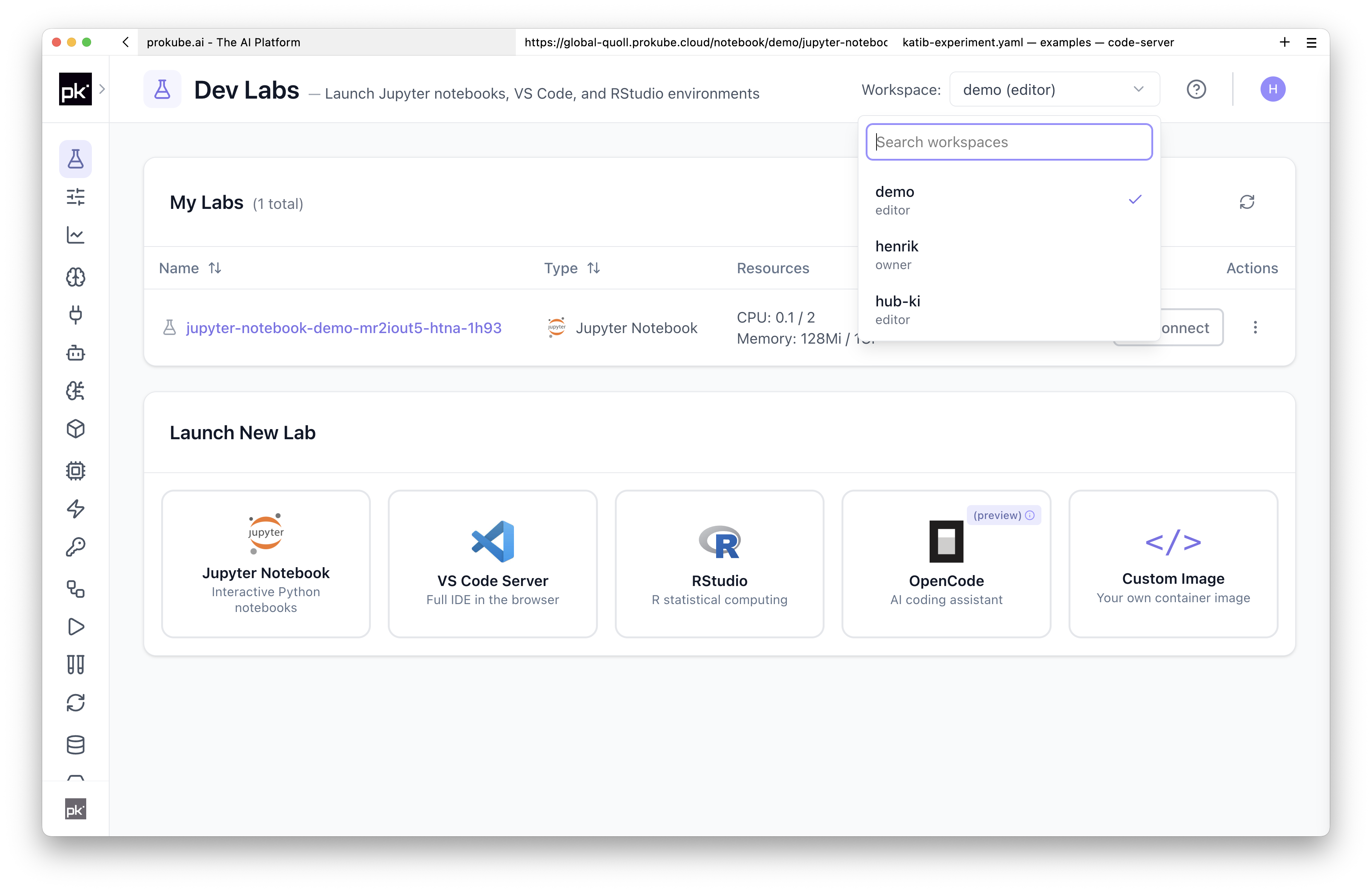
Labs run in the currently selected workspace. Most users have a personal workspace, and can also be granted access to shared workspaces for team projects.
The active workspace determines which namespace, storage, credentials, and access rules the Lab uses. When you have access to multiple workspaces, select the workspace before launching a Lab.
Secrets are workspace-visible
Each workspace has its own Kubernetes namespace. Workspace owners and edit contributors can read every Kubernetes Secret in that namespace, whether a workload uses it or someone created it by hand. View contributors cannot read Secrets.
Do not put personal access tokens, admin credentials, cloud root keys, or other broad credentials into a workspace that other people can access. For team work, use a shared workspace with credentials intended for that team and workload.
See Workspaces for access levels and shared workspace behavior.
Launch Options
All Lab types share the same launch options:
- Image: selects the IDE, language stack, preinstalled packages, and system tools.
- Compute resources: CPU, memory, and GPU for the Lab pod.
- Storage: the workspace volume, plus optional data volumes for shared datasets or larger working directories. See Persistence and Package Installation for what survives restarts and how volumes can be shared.
- Configurations and Security options: administrator-provided pod settings. See Advanced Configuration.
Managing Labs
Running Labs reserve CPU, memory, GPU, and volume attachments in the cluster. Stop Labs when you no longer need the running process.
Some deployments stop idle JupyterLab servers automatically, which is called notebook culling. This is a deployment setting, not guaranteed behavior. VS Code, RStudio, OpenCode, and custom notebook images may detect idle time differently, depending on the installed controllers and images.
Common lifecycle operations:
- Stop and Start: Stop deletes the Lab pod and releases compute resources; Start creates it again from the same configuration. Files on mounted persistent volumes remain.
- Delete: removes the Lab server object and pod. Mounted volumes are not necessarily deleted with it; delete unused volumes separately when you no longer need the data.
- Edit: changes the image, compute resources, volumes, configurations, or security options of an existing Lab. A running Lab restarts to apply the change, so save your work first: files outside mounted volumes are lost.
- Recreate: for changes that Edit does not cover, such as the Lab name or type, create a new Lab. To keep your home directory, attach the old Lab's persistent volume to the new one.
Avoid customizing a running Lab by hand for anything you need to reproduce. If a team needs a repeatable environment, build a Custom Notebook image instead.
Advanced Configuration
The Configurations and Security options fields are administrator-provided options for the Lab pod. Which options are available depends on the installation.
For example, GPU-specific workloads may use an affinity configuration so that the Lab is scheduled on nodes with the required GPU type. If the required option is not visible in the launch dialog, ask your platform administrator.
Configurations can also expose selected Kubernetes Secret values as environment variables. Create the secret in the workspace first, for example through K8s Secrets in the prokube user menu, then select the matching configuration when launching the Lab. Do not put secret values directly into notebooks, shell history, or container images.
Administrators create these options with Kubeflow PodDefaults or equivalent notebook configuration. Users can select only the configurations exposed to the workspace. If a configuration you need is missing, ask the platform administrator to add a reusable configuration instead of editing generated notebook resources by hand.
Persistence and Package Installation
Files in the Lab home directory are backed by the workspace persistent volume and survive Lab restarts. In the default images this is the jovyan user's home directory, usually /home/jovyan. This is the right place for notebooks, source code, configuration files, and cloned repositories.
Changes outside mounted volumes are temporary. Whenever the Lab pod is recreated, including when you stop and start or edit the Lab, system-level Python and OS packages and running background processes are lost.
For additional packages, prefer installs that write into the persistent home directory or project directory:
- use pip's user install mode, for example
pip install --user, for simple Python additions, provided the active Python environment loads user-site packages (isolated virtual environments usually do not); - use uv project environments under the persistent workspace, for example the default
.venvnext to your project; - use Poetry in-project virtual environments when working with Poetry projects;
- use conda environments with an explicit prefix, for example under
/home/jovyan/envsor your project directory.
Keep dependency files such as requirements.txt, pyproject.toml, environment.yml, or renv.lock with your project. For team workflows or system-level dependencies, create a Custom Notebook image.
For large datasets, shared artifacts, pipeline outputs, and model files, prefer S3-compatible file storage over the workspace volume. Workspace volumes are useful for interactive work, but S3-backed storage is the better integration point for pipelines, MLflow, and model serving. For a platform-wide comparison, see File Storage.
The default storage class is commonly ReadWriteOnce: in multi-node clusters, a volume can usually be mounted read-write only by pods on one node at a time. Do not use the same workspace volume from multiple running Labs at the same time unless your administrator has designed the storage setup for that pattern. For shared datasets and artifacts, use S3-compatible file storage or a storage class with the required access mode.
Installing Tools Without Root
Labs usually run without root access. Install additional command-line tools into the persistent home directory when the selected image does not already include them.
One option is Homebrew on Linux:
bash
export HOMEBREW_PREFIX="$HOME/.linuxbrew"
mkdir -p "$HOMEBREW_PREFIX"
curl -L https://github.com/Homebrew/brew/tarball/master | tar xz --strip 1 -C "$HOMEBREW_PREFIX"

echo 'export HOMEBREW_PREFIX="$HOME/.linuxbrew"' >> ~/.bashrc
echo 'export PATH="$HOMEBREW_PREFIX/bin:$HOMEBREW_PREFIX/sbin:$PATH"' >> ~/.bashrc

export PATH="$HOMEBREW_PREFIX/bin:$HOMEBREW_PREFIX/sbin:$PATH"
brew update --force
After that, install tools into your home directory:
bash
brew install jq
brew install htop
The installation lives under /home/jovyan in the default images and survives Lab restarts. For team-wide or production environments, move required tools into a Custom Notebook image instead.
For Node.js workflows, use a user-space version manager such as nvm so the installation lives in the persistent home directory:
bash
curl -o- https://raw.githubusercontent.com/nvm-sh/nvm/v0.39.7/install.sh | bash
export NVM_DIR="$HOME/.nvm"
[ -s "$NVM_DIR/nvm.sh" ] && . "$NVM_DIR/nvm.sh"
nvm install 20
If you need the same Node.js version for a team workflow, prefer a custom image with the runtime pinned and tested.
File Storage from Labs
Labs can work with S3-compatible file storage. The available tools depend on the selected image and workspace configuration.
The prokube-maintained pk-* notebook images include rclone with a preconfigured minio remote when the workspace file-storage configuration is available. Use it from a Lab terminal:
bash
rclone lsd minio:
rclone copy local-file minio:my-bucket/path/
rclone copy minio:my-bucket/path/file ./file
See File Storage for S3-backed and PVC-backed storage. It has Python and R examples with s3fs and pandas, connection settings for external clients, and storage security notes.
Building Container Images
You can build container images from a Lab and push them to a registry.
The build does not run in the Lab pod, and there is no local Docker daemon. The Docker client and Buildx plugin in the image send the build to a remote BuildKit service in the cluster. The BUILDKIT_HOST environment variable points to this service when the cluster provides it.
This tooling is included in the prokube-maintained pk-* notebook images, which are based on the upstream Kubeflow notebook server images. That covers the standard prokube JupyterLab, VS Code (code-server), and RStudio images. Upstream or fully custom images support builds only if they include the same tooling and startup configuration.
Push every build to a registry:
bash
docker login <registry>
docker buildx build -t <registry>/<image>:<tag> --push .
Always use --push. The Lab pod has no local image store, so the built image is only usable from the registry.
In prokube-maintained images, docker build may be wrapped to call docker buildx build, so existing scripts and Makefiles work with the remote builder.
For multi-architecture images, pass the target platforms explicitly and push the manifest list:
bash
docker buildx build \
  --platform linux/amd64,linux/arm64 \
  -t <registry>/<image>:<tag> \
  --push .
Run docker login in your Lab before pushing. The builder does not share your registry credentials with other users. If platform workloads later need to pull the private image, add pull credentials to the workspace. See Registry Credentials.
The remote builder caches build layers to speed up later builds. The cache is not a registry, so do not rely on it to keep images.
The builder is shared across workspaces
All workspaces in the cluster use the same BuildKit service, and workspace boundaries do not apply to it:
- Build history and build logs, including build arguments, image names, and push targets, can be listed and read from any workspace.
- Layer caches and cache mounts (
RUN --mount=type=cache) are shared between all users' builds. Another build that uses the same cache mount ID can read and change its contents. - Base images pulled with your registry credentials can stay in the cache and be reused by other users' builds.
Do not put secrets into build arguments, Dockerfile instructions, or build output. Pass build-time credentials with docker buildx build --secret, which keeps their values out of the cache and the build history. Do not use the shared builder for source code, logs, or images that must stay hidden from other platform users.
This setup is only for building and pushing images. It is not a container runtime: images cannot be started with docker run inside the Lab. Run workloads through Kubernetes resources, pipelines, model serving, or other platform runtimes instead.
Troubleshooting Labs
Start with the Lab details page and the pod events. Most startup failures show up as Kubernetes events before they show up in the application UI.
If you have Kubernetes access, inspect the pod directly:
bash
kubectl describe pod <pod-name> -n <workspace>
kubectl logs <pod-name> -n <workspace> --all-containers
Common cases:
- The Lab does not start: check pod events for image pull errors, missing secrets, failed volume mounts, resource quota limits, or scheduling errors.
- The browser shows an upstream connection error: the Lab pod may not be ready yet, may have crashed, or may be unable to start the expected web server. Check pod status and logs.
- The Lab starts and then crashes: use the Logs browser to search the Lab pod logs by workspace and pod name.
- A private custom image cannot be pulled: verify the image reference and registry credentials. See Registry Credentials.
- A volume cannot be attached: another running pod may still be using a
ReadWriteOncevolume on a different node, or the cluster may still have a stale volume attachment after a node restart. Stop other Labs using the volume and contact your administrator if the attachment does not clear. Do not deleteVolumeAttachmentresources yourself unless you administer the cluster and have verified the stale attachment. - The Lab needs more CPU, memory, or GPU: change the compute resources with Edit. If the volume itself is too small, create or request a larger volume and copy the data.
- A deleted Lab leaves data behind: this is expected for persistent volumes. Delete unused volumes separately when you no longer need them.
- A Lab server object or pod appears stuck: check events first. If a pod remains after deleting the Lab, ask an administrator or use
kubectlonly if you understand which pod belongs to the Lab.