

Appearance
OpenCode
OpenCode Labs run OpenCode inside a prokube workspace, so you can manage long-running agentic coding sessions from the browser without giving the agent access to your local machine.
Because sessions run in the workspace, you can leave tasks running overnight, switch between multiple projects and sessions, and review changes before they reach Git or your local checkout.
prokube uses the open-source pk-opencode-webui project to run OpenCode in Kubeflow Notebooks. prokube.ai open-sourced this web UI and notebook integration so that OpenCode works behind the workspace URL prefixes used by Kubeflow Notebook routes. The project also provides the OpenCode notebook image with Lab-specific defaults, and the UI features described on this page, such as the project picker, Git and SSH helpers, and the MCP manager.
OpenCode documentation
For OpenCode features that are not specific to prokube, use the upstream OpenCode documentation. For the prokube wrapper and notebook integration, see pk-opencode-webui.
When to Use OpenCode Labs
Use OpenCode Labs for agentic engineering, where AI agents write, change, and review most of the code. OpenCode fits work that takes many iterations: the agent inspects the repository, proposes changes, runs commands or tests, and reacts to your feedback. Sessions continue in the workspace rather than on your laptop, so longer tasks keep running.
Common uses include:
- editing notebooks, pipeline code, model-serving code, MCP servers, agents, and platform examples;
- asking a coding agent to inspect a workspace-specific issue while it has access to the same mounted files and services;
- working across several project directories from one browser session;
- configuring or testing MCP servers while developing agent workflows;
- reviewing file changes and terminal output before committing to Git.
Use VS Code when you want a full IDE. Use JupyterLab when notebooks and exploratory analysis are the main workflow.
Start an OpenCode Lab
Create an OpenCode Lab from the Labs page. The launch dialog uses the same core options as other Labs: name, compute resources, storage, configurations, and security options.
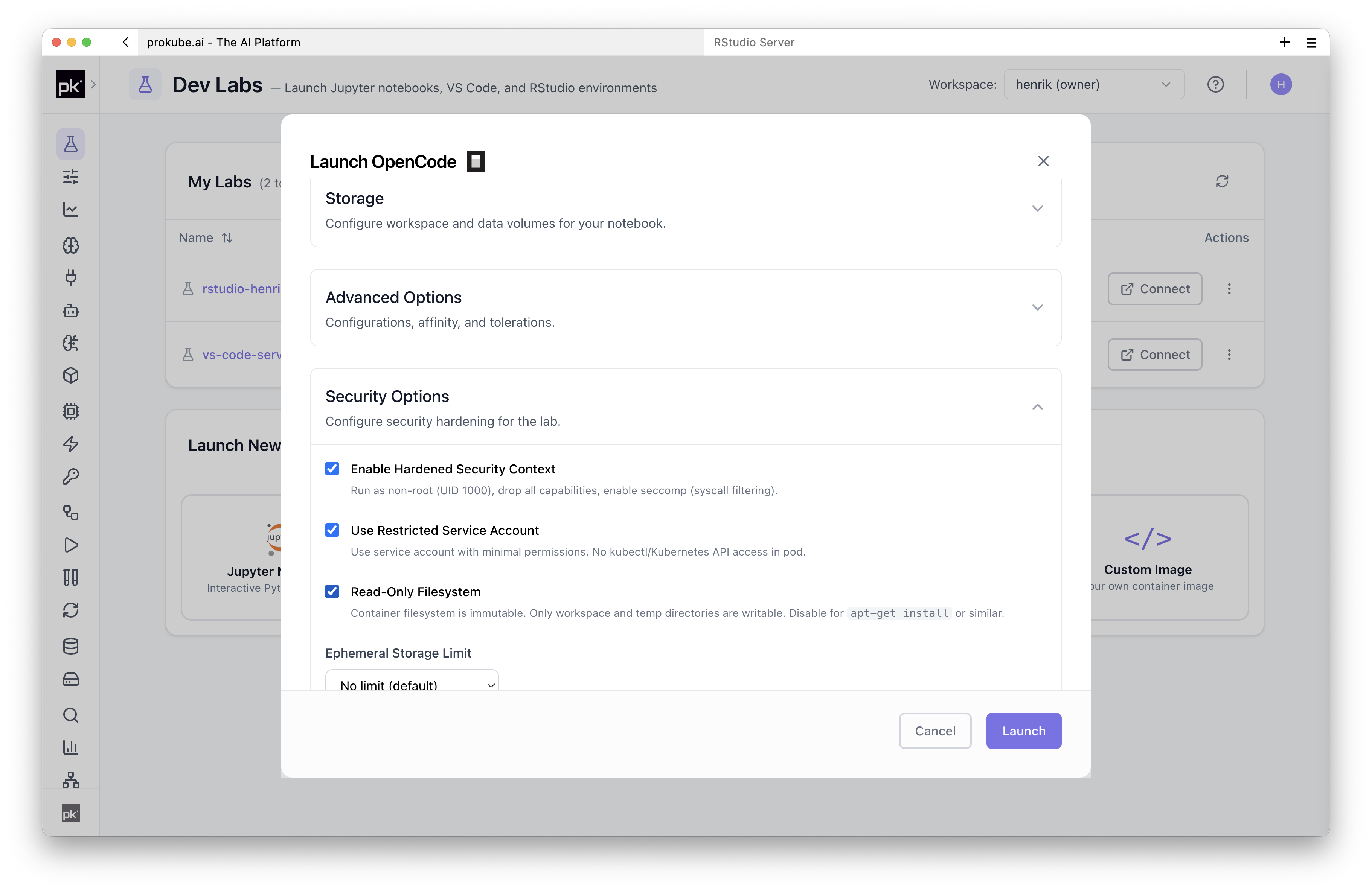
After the Lab starts, open it from the Labs table. The OpenCode UI is served from the Lab pod and connects to the OpenCode API server running in the same container.
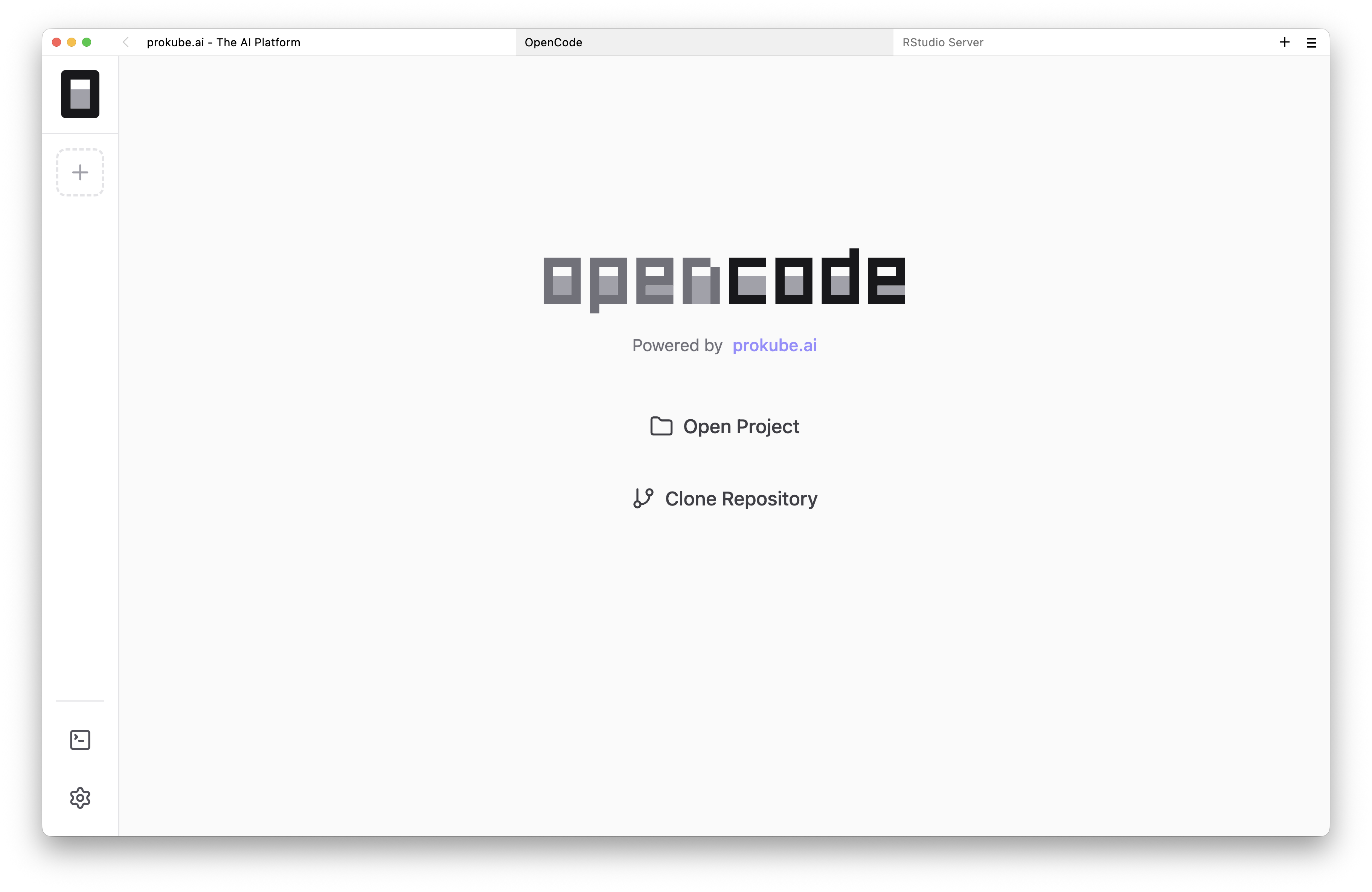
The Lab starts:
- the upstream
opencode servebackend on an internal loopback port; - the prefix-aware web UI on the notebook port used by Kubeflow;
- process supervision for both services;
- persistent OpenCode configuration under
/home/jovyan; - startup handling for SSH key permissions on the mounted home volume.
OpenCode Labs use the same lifecycle and persistence model as other Labs. See Managing Labs and Persistence and Package Installation for shared behavior.
Open or Clone a Project
On first open, choose a project directory or clone a Git repository. The project picker can browse the Lab filesystem, create folders, clone repositories, and reopen recent projects.
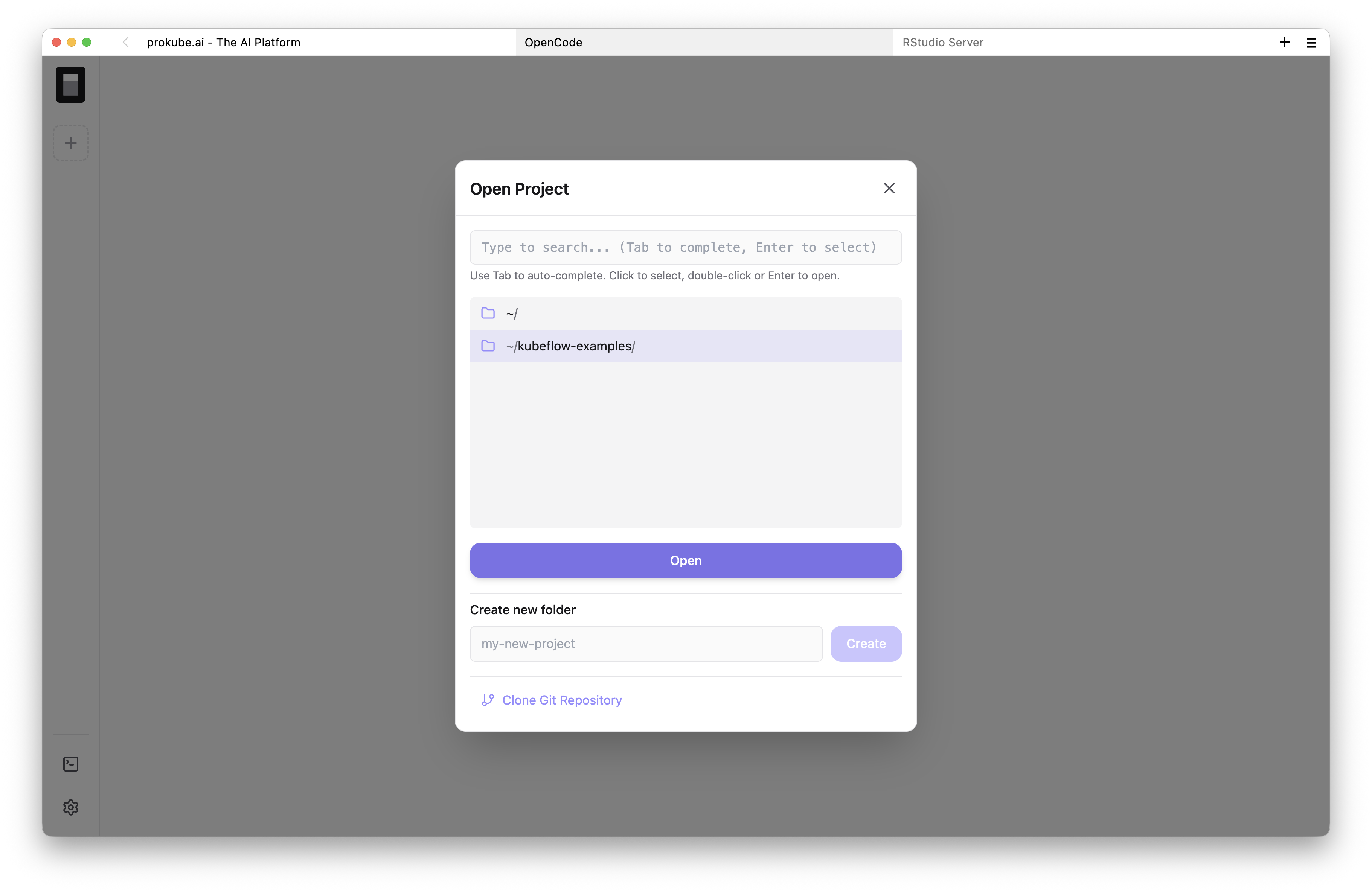
Keep active work under the persistent home directory, usually /home/jovyan, or another mounted volume. Files written only to the container filesystem are lost when the Lab is recreated.
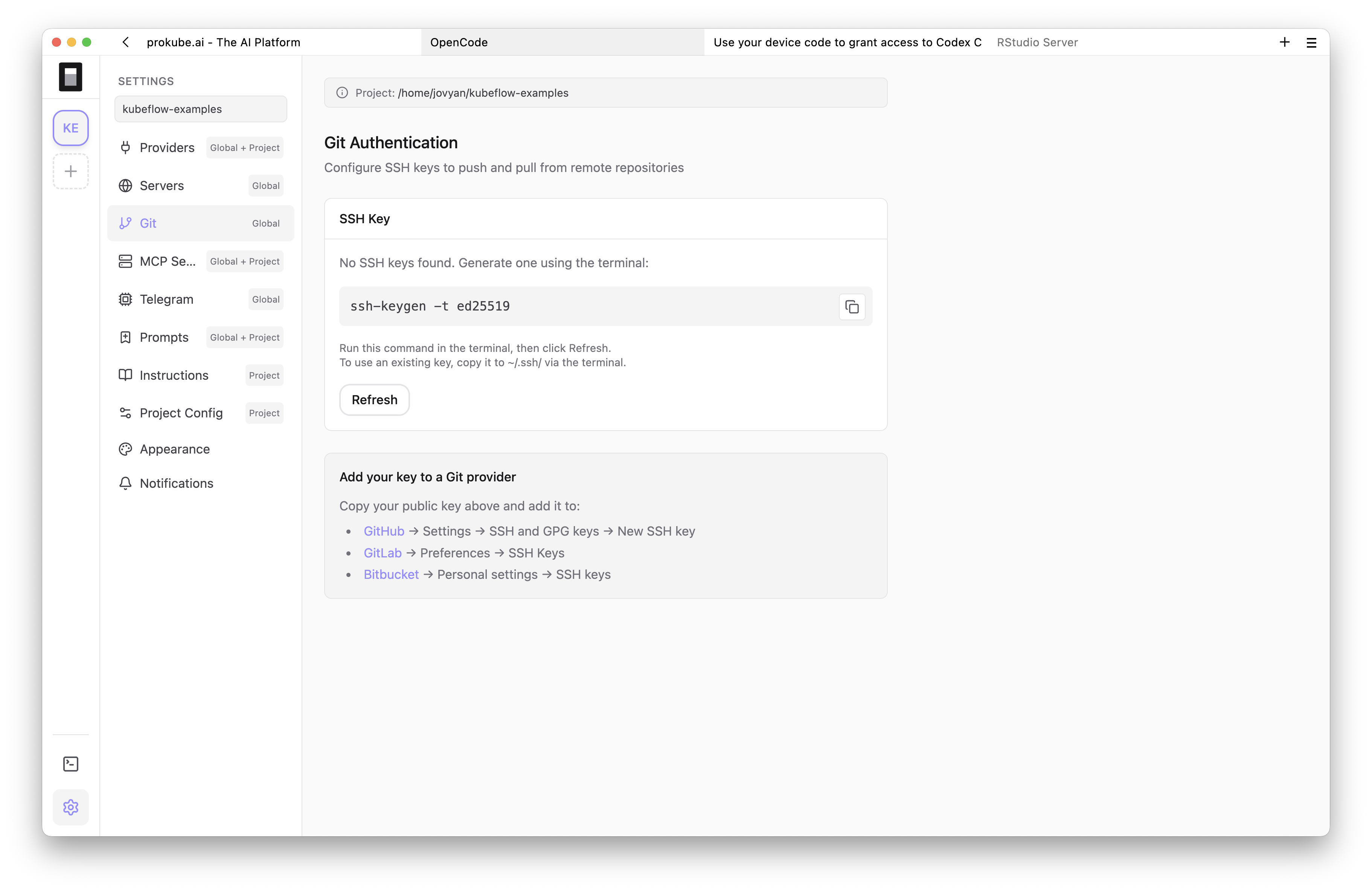
For private repositories, configure Git credentials first. The OpenCode image includes Git and an SSH helper in Settings. If no SSH key exists, the UI shows the ssh-keygen -t ed25519 command. Open the integrated terminal with the terminal button in the bottom-left corner, run the command there, then return to Settings. The UI displays public keys found under ~/.ssh/*.pub so you can add them to GitHub, GitLab, or another Git host.
Connect a Model Provider
OpenCode needs a model provider before it can answer prompts or edit code. Use Settings to connect a provider such as OpenCode, Anthropic, GitHub Copilot, OpenAI, Google, or OpenRouter, depending on what your environment allows. You can also use models hosted on prokube itself, or external models that an administrator exposes through the Agent Gateway.
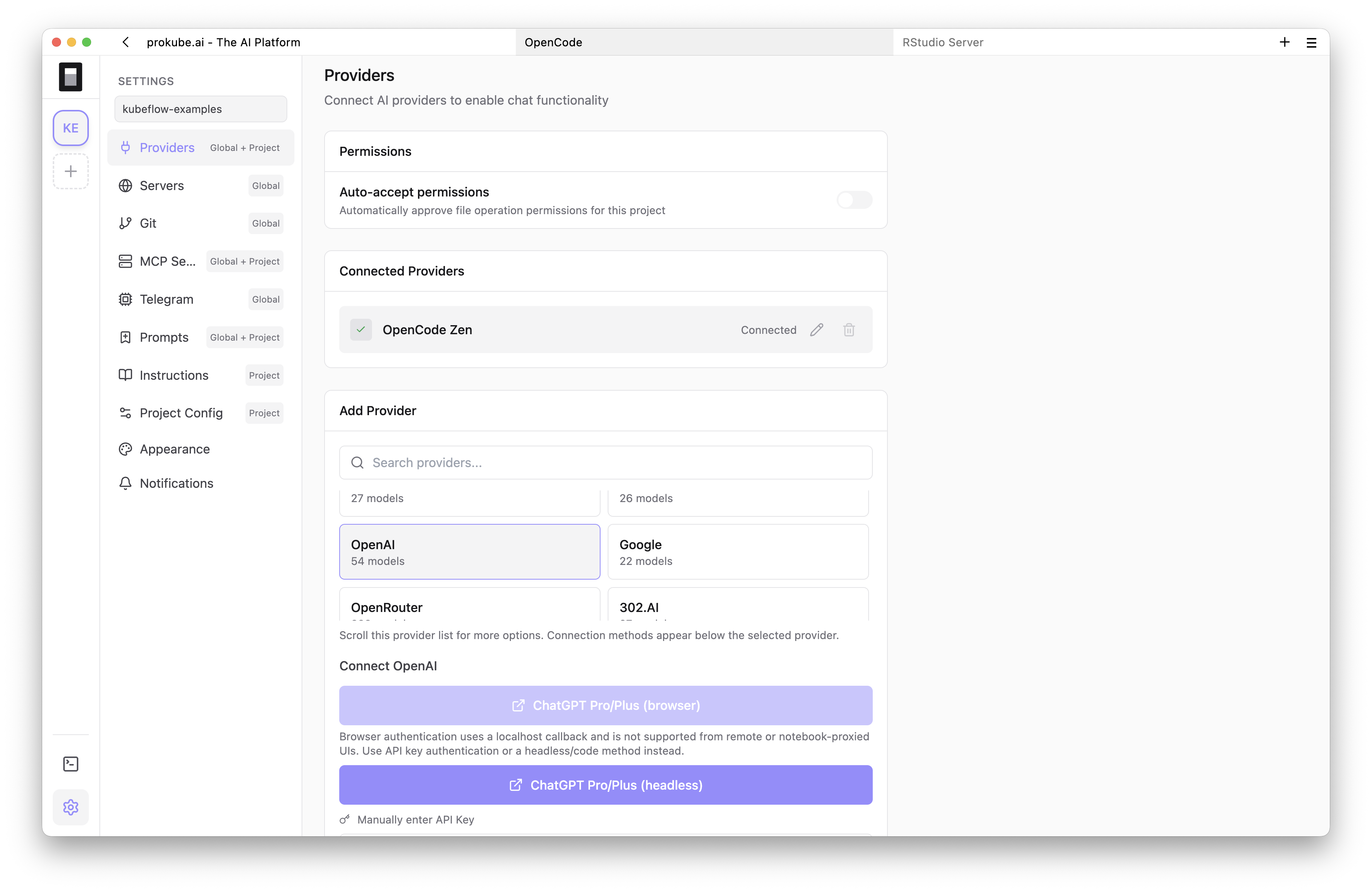
Provider credentials are stored in the Lab environment according to OpenCode's configuration behavior. Treat them as workspace-scoped credentials: use narrowly scoped keys, avoid personal or administrator credentials, and rotate or remove keys when they are no longer needed.
Work with Projects and Sessions
In OpenCode, a project is the directory OpenCode works in. In practice this is usually a cloned Git repository or a folder under the persistent Lab home directory. The project defines the files, instructions, Git state, and working directory that OpenCode can inspect or modify.
A session is a single agent conversation attached to a project. You can keep multiple sessions for the same project, for example one for debugging, one for a refactor, and one for documentation. You can also switch between projects without restarting the Lab.
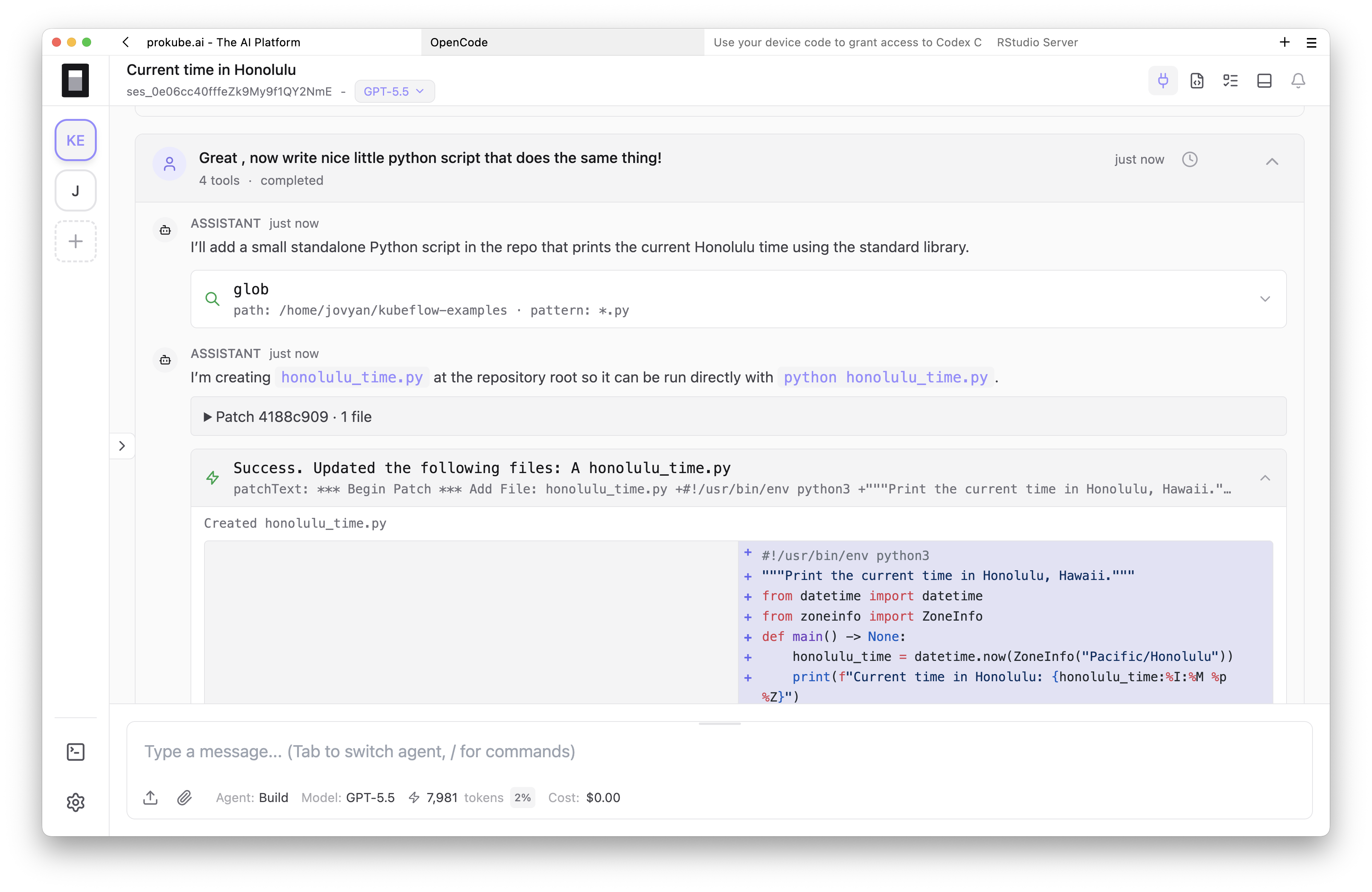
Within a session, you can:
- switch the model or provider;
- attach files;
- fork from earlier messages;
- have OpenCode ask for permission before file edits or shell commands.
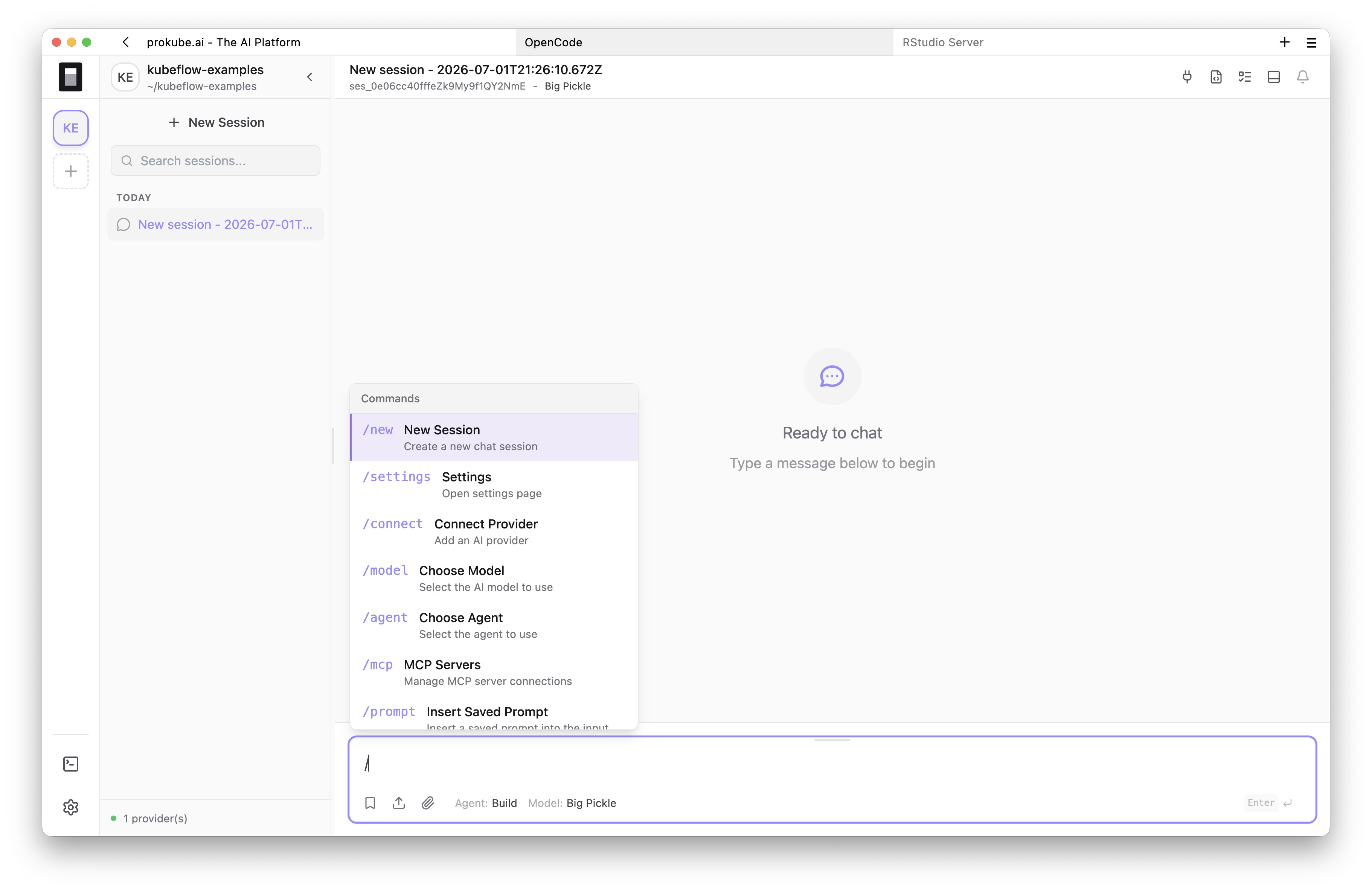
The UI also exposes features from the prokube wrapper around the OpenCode backend:
- project-aware sessions and recent projects;
- saved prompts available globally or per project;
- editable instruction files such as
AGENTS.md; - command palette and keyboard hint mode;
- file tree, file viewer, diffs, and image attachments;
- session timeline rendering for tool calls and agent activity.
Control Permissions and Execution
OpenCode can make real changes to files and run commands in the Lab container. If you use it in a workspace with sensitive code, data, credentials, or platform access, prokube recommends starting with narrow permissions and expanding them only when needed.
During Lab launch, set the OpenCode security settings explicitly instead of accepting broad access by habit. These settings are the first control surface for what the Lab can access and what OpenCode is allowed to do. If those launch-time controls are not enough for your workflow or risk model, tighten OpenCode itself through its config file.
In the prokube OpenCode image, the global OpenCode config is stored at:
text
/home/jovyan/.config/opencode/opencode.jsonThis path is under the persistent Lab home directory. The image provides a default config at that location, and startup scripts create the config directory without overwriting an existing config on the mounted home volume.
Useful upstream OpenCode references:
OpenCode permissions are configured in opencode.json. Defaults can be permissive depending on the tool and environment, so explicitly set sensitive tools to ask or deny when you want review before edits, shell commands, task delegation, or MCP tool calls. OpenCode also supports tool patterns and MCP-tool wildcards; use those to allow only the operations a project actually needs.
For coding-agent workflows, prokube disables broad Kubernetes and file-storage access by default where possible, and recommends granting only the narrow permissions required for the task. Do not assume kubectl access or S3-compatible file-storage credentials are available in an OpenCode Lab.
The OpenCode image is not intended for local container image builds and does not include the Docker/Buildx workflow used by some other Labs.
For stronger isolation, do not rely on a "read-only directory" convention as the main security boundary. Upstream OpenCode documents references for adding external context, and read-only external directory behavior has been discussed upstream, for example in anomalyco/opencode#18441. For real isolation, deny invasive OpenCode tools and avoid mounting sensitive directories or credentials into the OpenCode Lab in the first place.
Use the Integrated Terminal
OpenCode Labs include an integrated terminal backed by the OpenCode PTY API. Use it for normal development commands such as git, SSH setup, package managers, tests, and CLIs that are available in the selected image.
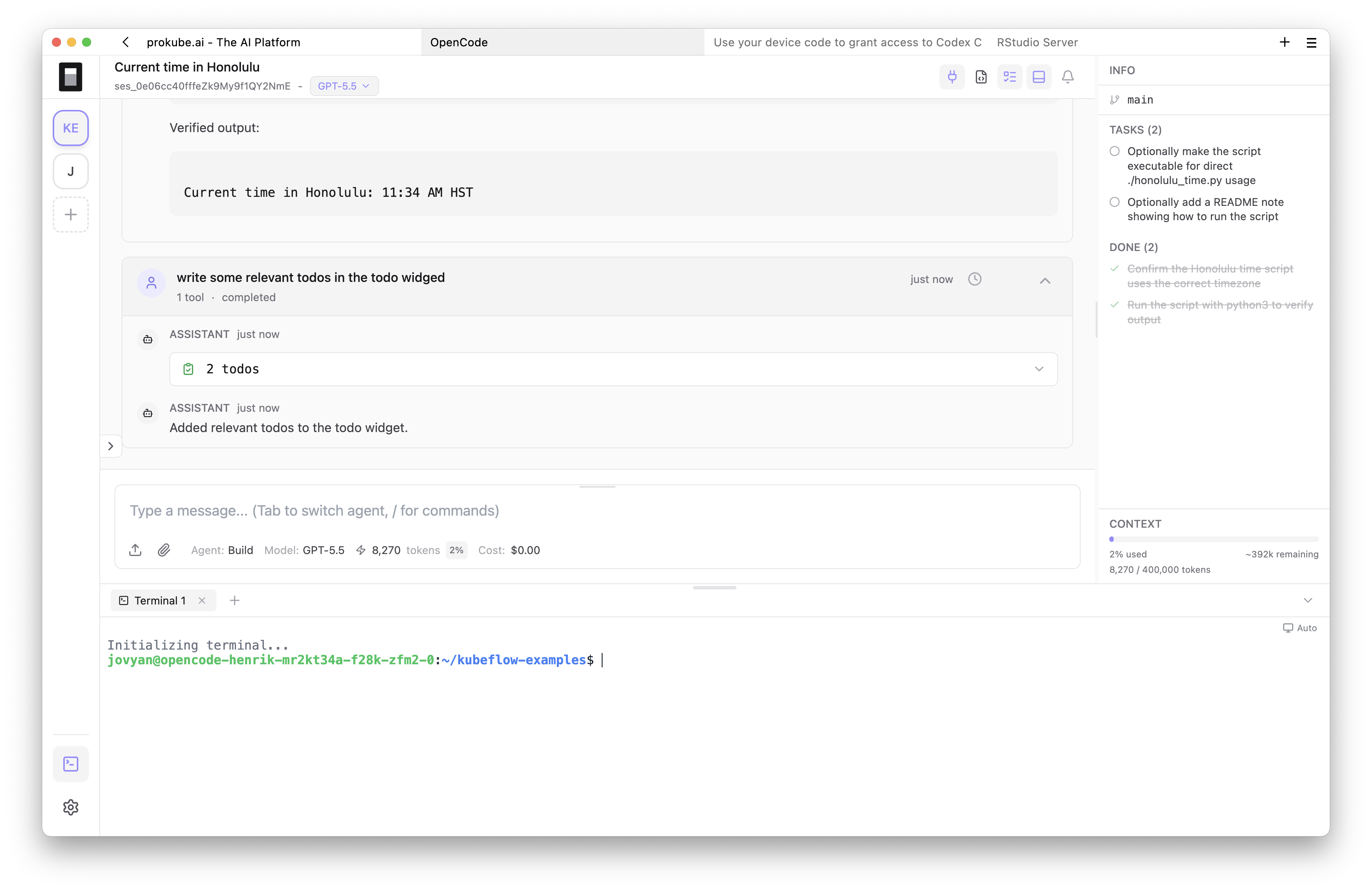
The terminal runs inside the same Lab pod as OpenCode. It is useful for explicit manual commands, but it is not a separate execution boundary. If you need package installation patterns or file-storage access in a Lab where those permissions are intentionally enabled, use the shared Labs guidance:
Add MCP Servers
OpenCode supports Model Context Protocol servers. The prokube UI includes a graphical MCP manager. Use it to add remote servers, connect or disconnect them, and check their status. For servers that support OAuth, you can also start the OAuth flow there.
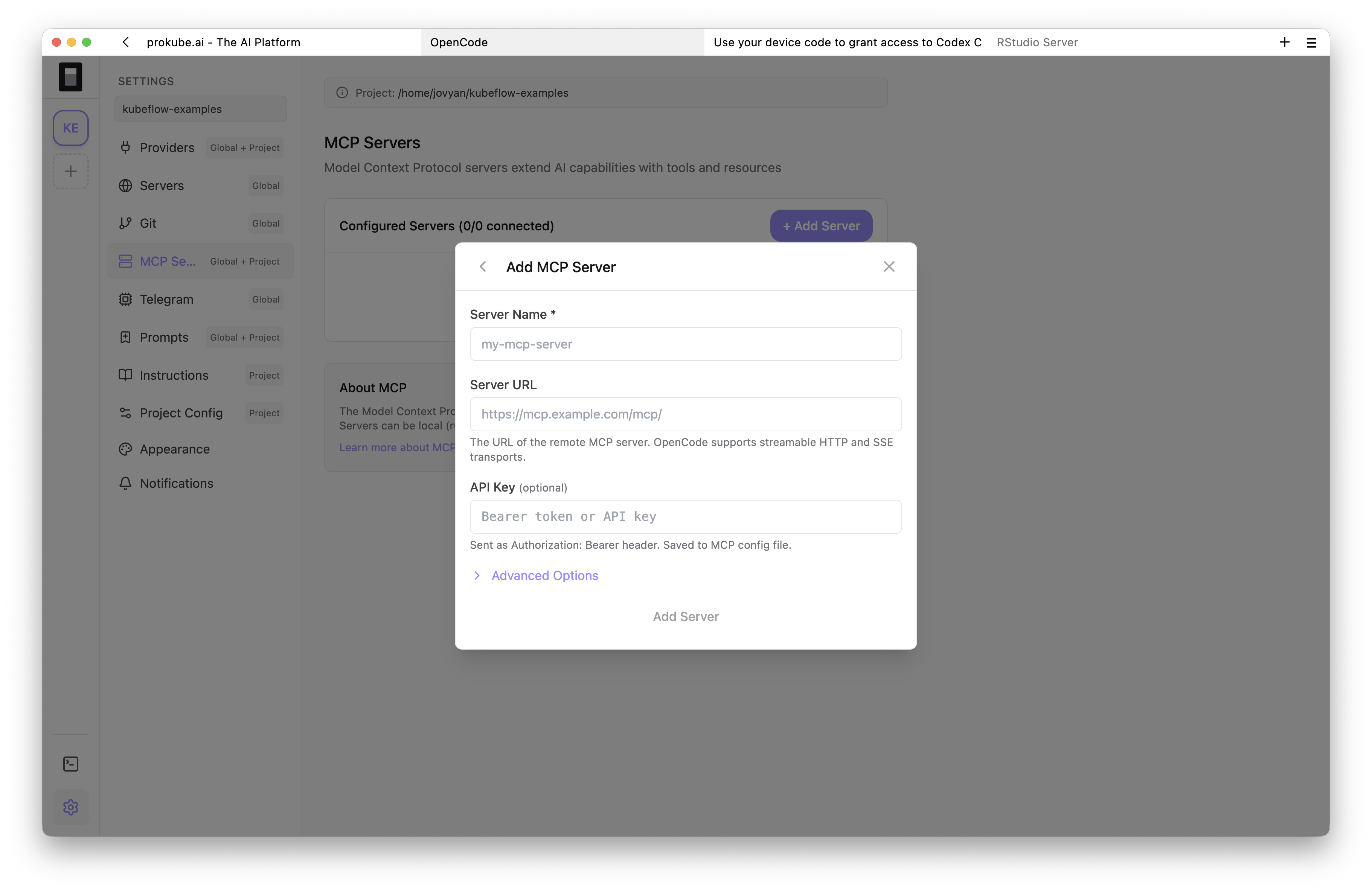
Each remote MCP entry has a URL. Optional settings include an Authorization header, custom HTTP headers, a timeout, and OAuth settings. The UI writes MCP configuration through OpenCode's config APIs.
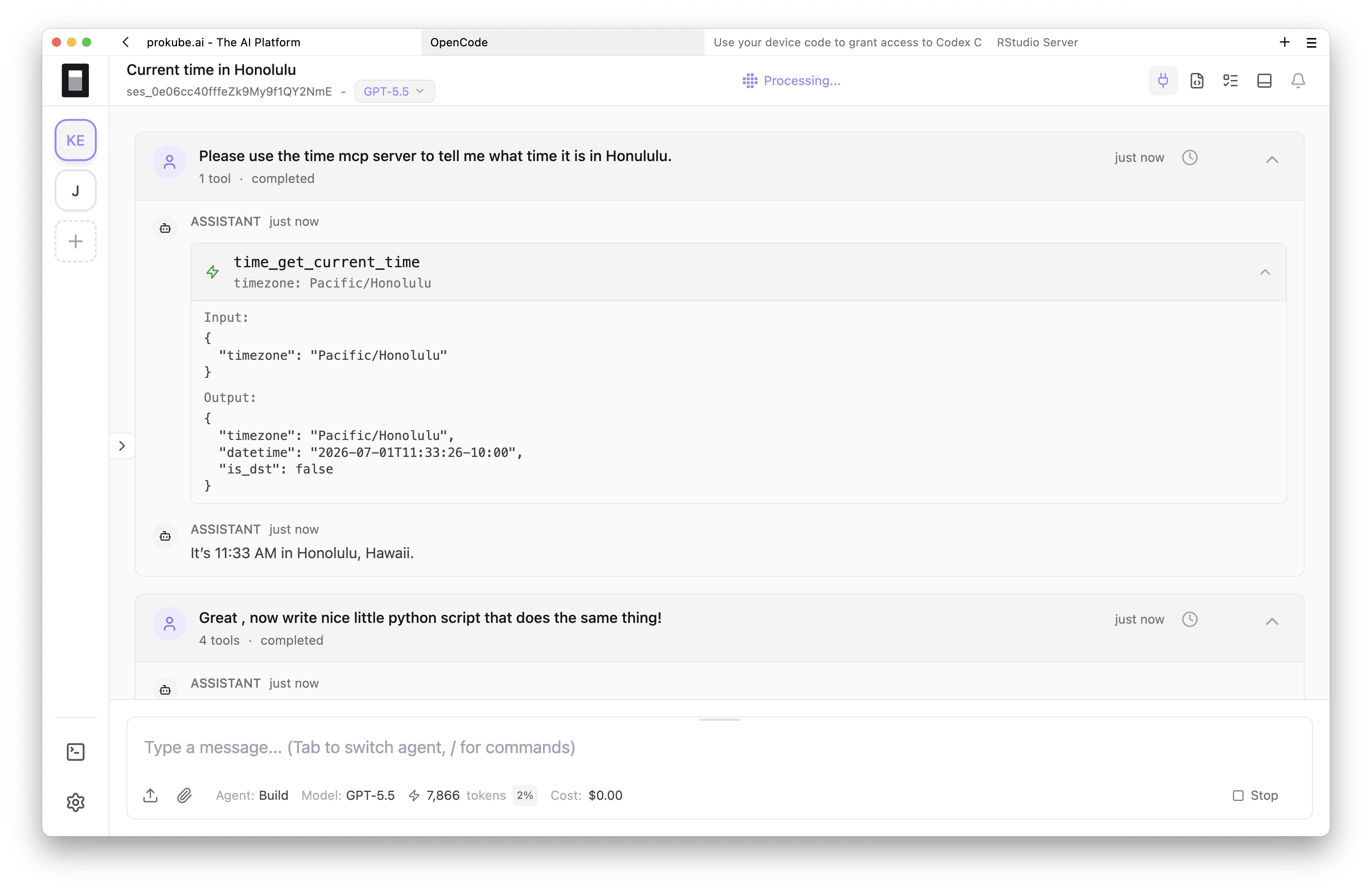
For hosting MCP servers on prokube, platform-managed MCP endpoints, and public routing, see MCP Servers. For memory-backed MCP endpoints, see Memory Stores.
Operational Notes
OpenCode Labs are workspace pods and behave like any other Lab: the same access rules, storage, lifecycle, and resource limits apply. They are meant for a person working interactively with a coding agent.
Important points:
- Persist work under
/home/jovyanor another mounted volume. - Stop or delete unused Labs to release compute resources.
- Keep provider keys and Git credentials scoped to the workspace risk level.
- Browser-based agent activity may not behave like a Jupyter kernel for every idle-culling setup; confirm automatic shutdown behavior in your environment.
- If the UI opens but the agent does not respond, check provider configuration and OpenCode logs in the Lab home directory.
For general lifecycle issues, storage attachment problems, image pull errors, and pod-level debugging, see Troubleshooting Labs.