

Appearance
Custom Notebooks
Custom Notebooks let you run specialized Lab environments when the standard JupyterLab, VS Code, RStudio, or OpenCode images are not enough.
Use a custom notebook image when you need a controlled package stack, additional system tools, GPU-specific libraries, or a web application that should run inside the same workspace boundary as the rest of your prokube work.
Common Uses
- Preinstall Python, R, CUDA, or system packages that should be available every time the Lab starts.
- Package team-specific tooling, CLIs, SDKs, or templates into a reusable image.
- Run a custom browser-based web server for rapid prototyping.
- Test specialized development environments before turning them into shared images.
How It Works
Custom Notebooks use the same technical foundation as other Labs: a Kubeflow Notebook pod with configurable compute resources, persistent workspace storage, optional data volumes, and workspace-level configuration.
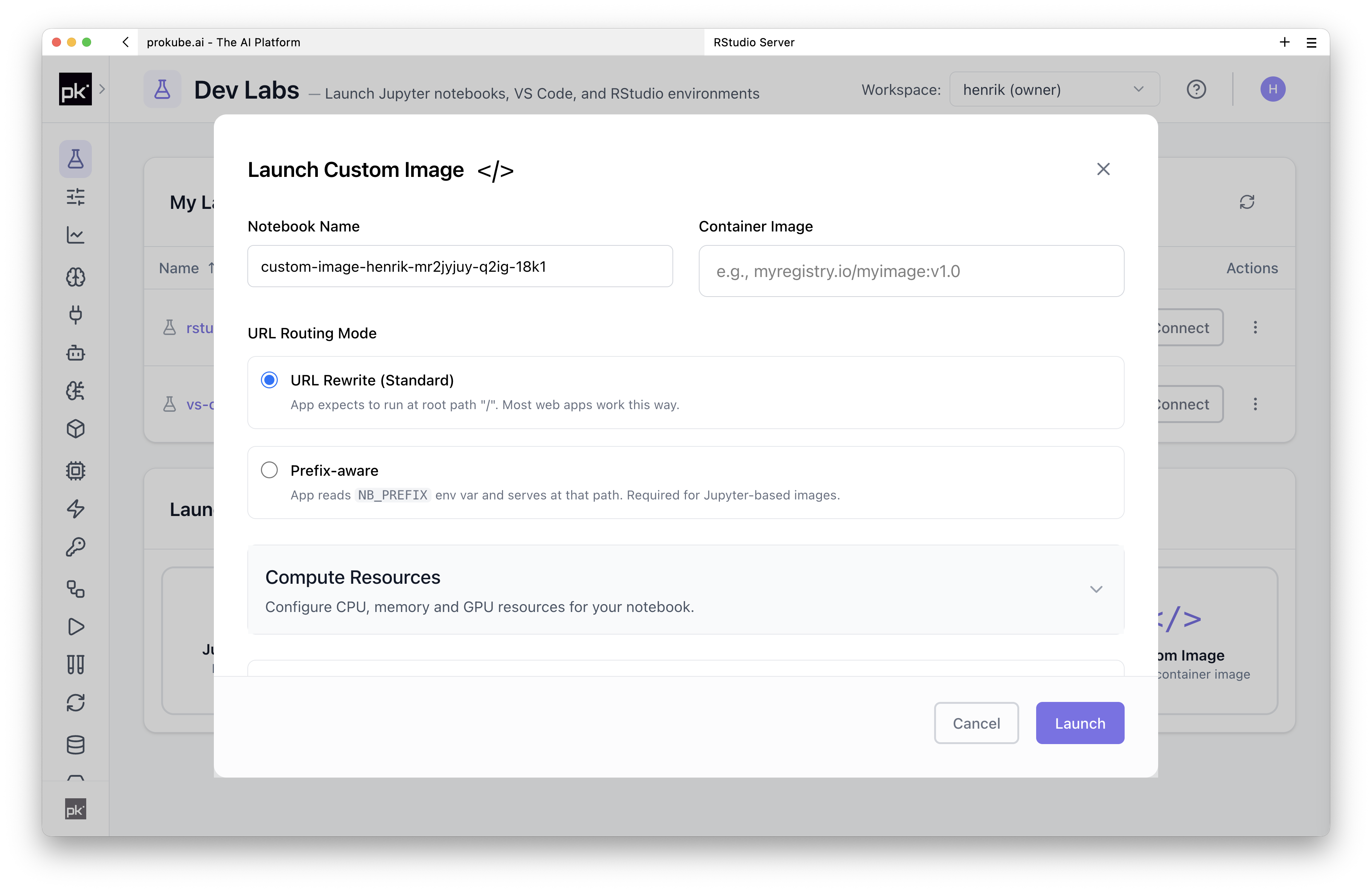
At minimum, you need to:
- Build a container image that is compatible with Kubeflow custom notebook images.
- Push the image to a container registry that the Kubernetes cluster can reach.
- Add registry credentials if the image is private and no matching registry pull secret has already been configured by an administrator.
- Select the image in the Custom Notebook launch dialog.
For custom web applications, the container should expose the expected notebook port and handle being served behind the platform's notebook proxy path.
Use Using Labs for the shared workspace, persistence, file-storage, and image-building behavior. Use custom images when user-space package installation is not enough or when a team needs the same environment repeatedly.
The prokube/examples Streamlit example shows a custom image that can run as a Kubeflow Notebook and serve a Streamlit app behind the notebook proxy path.
Registry Credentials
If your custom image is stored in a private registry, the workspace needs an image pull secret before Kubernetes can start the Lab pod. This may already be handled globally by an administrator, for example through a shared regcred-* secret. If not, add registry credentials for the workspace.
In the prokube UI, click your user icon in the top-right corner and open the registry credentials action. Use it to configure the registry server, username, and token or password for the workspace.
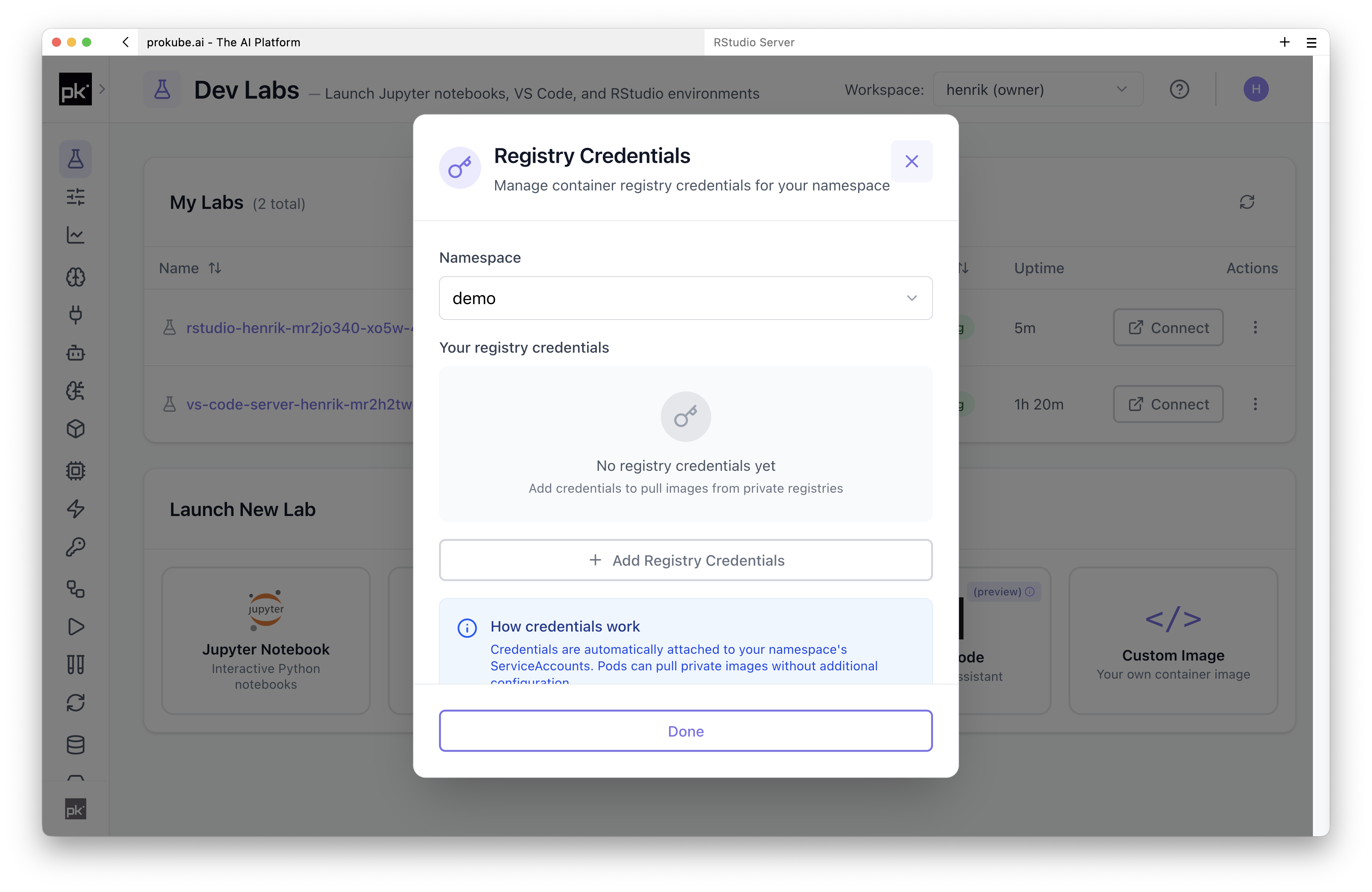
Registry credentials are stored as Kubernetes Secrets in the workspace. Workspace owners and edit contributors can read Kubernetes Secrets in the namespace, so use registry credentials intended for that workspace rather than personal or admin credentials.
For the Kubernetes-level behavior of image pull credentials, see Registry Credentials.
Custom Solutions
prokube can also support custom Lab solutions that go beyond a custom image, such as additional platform integration.