

Appearance
MCP Servers
Upstream documentation
For MCP and ToolHive concepts that are not specific to prokube, use the upstream documentation:
MCP servers expose tools, data sources, and internal APIs to AI assistants through the Model Context Protocol. In prokube, MCP servers run as Kubernetes workloads managed by ToolHive instead of local processes on a developer machine.
Use an MCP server when an agent or MCP-capable client needs a tool such as browser automation, a database, or an internal API. The server runs in your workspace with its own configuration and credentials, so the agent does not need broad user credentials to reach the service.
How prokube Runs MCP Servers
Open MCP from the prokube UI sidebar under AgentOps. Select the workspace before deploying or inspecting servers.
An MCP server is deployed into the selected workspace namespace as a ToolHive MCPServer resource. ToolHive runs the server and its local MCP proxy. prokube adds:
- a UI for deploying servers from the catalog or from a custom image;
- workspace authorization;
- logs, events, and metrics for each server;
- optional external access through Agent Gateway.
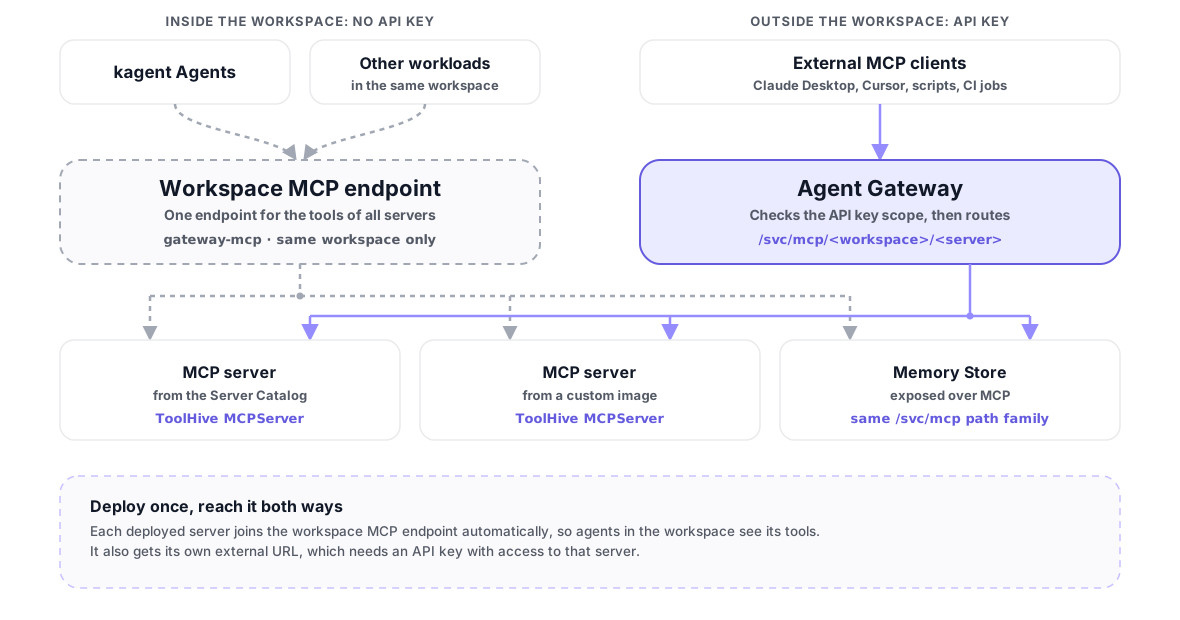
Every deployed server can be reached in two ways. Agents and other workloads in the same workspace use one shared workspace endpoint without an API key. Clients outside the workspace call each server through Agent Gateway with an API key:
The MCP page contains two main sections:
- Deployed Servers: MCP servers currently running in the selected workspace.
- Server Catalog: ready-to-deploy MCP servers, each with its image and required configuration already described.

Deploy from the Catalog
Use the catalog for known server images and common integrations. Each catalog card describes the server and its tools, and shows compatibility badges such as Requires Root.
The catalog can be filtered by:
- search text;
- tier: Official or Community;
- source: prokube.ai Only or Third Party Only;
- sort order: stars or name.
Click a catalog card to deploy it. The deploy dialog shows:
- Namespace: target workspace namespace.
- Server Name: Kubernetes resource name for the MCP server.
- Configuration: required and optional environment variables from the catalog entry.
- Registry Credentials: image pull secrets available in the workspace.
- Resource Limits: optional CPU and memory requests and limits.
- Technical Details: image, transport, and provided tools.
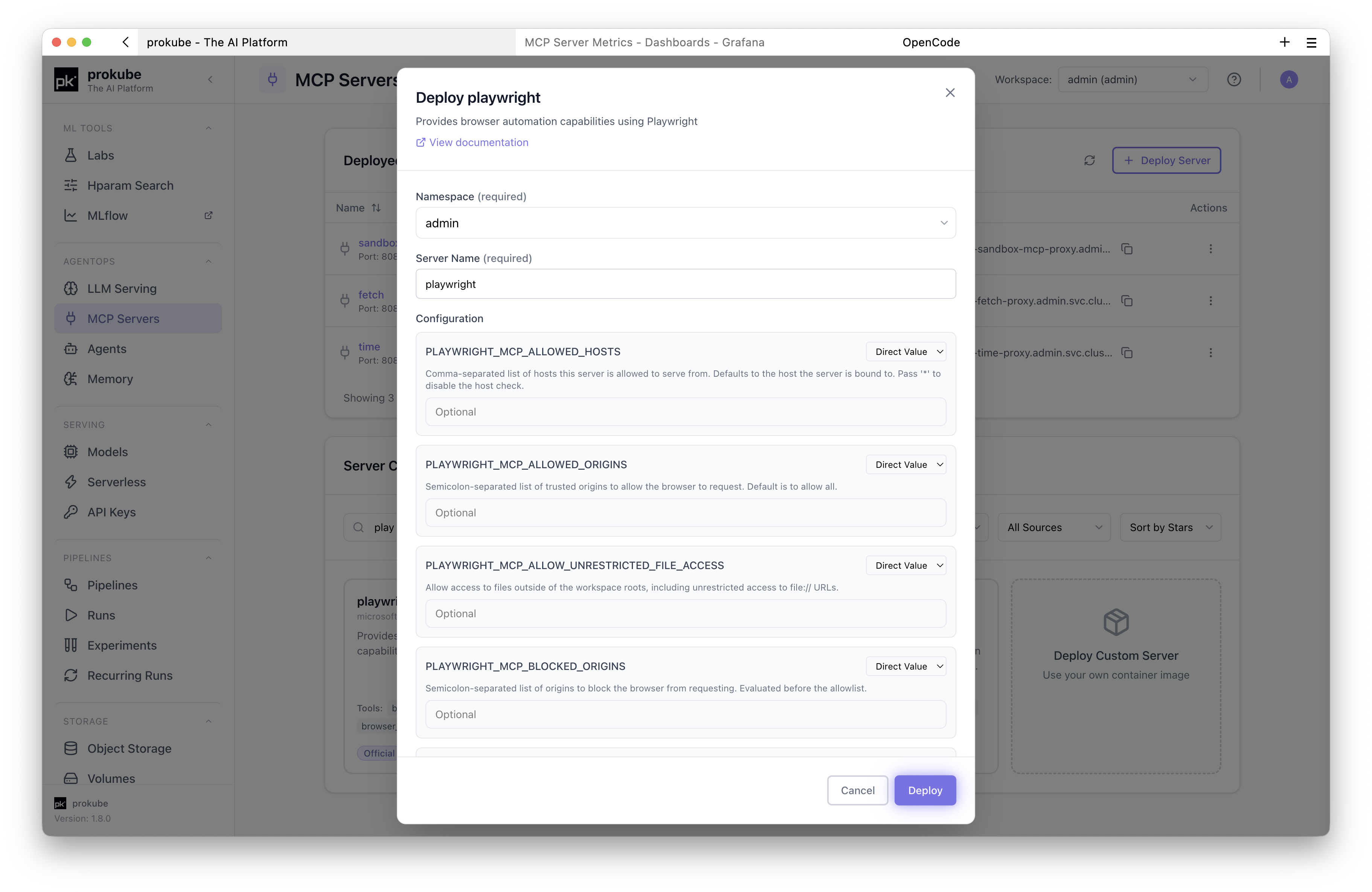
Environment variables can be entered directly or read from a Kubernetes Secret in the workspace. Use Secrets for tokens, passwords, API keys, and other sensitive values. See Kubernetes Secrets.
Catalog Source and Trust
The catalog comes from the upstream ToolHive Catalog, a community-maintained list of MCP servers. Each entry is reviewed through the ToolHive project and lists its publisher, source repository, tools, and required configuration. That makes it a safer starting point than an arbitrary container image.
A catalog entry is still not an approval for your environment. The tier tells you who maintains it:
- Official entries are maintained by the MCP team, the upstream project, or platform owners.
- Community entries are contributed and maintained by the community.
- prokube.ai Only narrows the list to entries published or curated by prokube.ai where available.
Before giving an MCP server credentials or access to internal systems, review what it connects to, who maintains it, which tools it exposes, and whether it needs broad permissions. Prefer Official or internally maintained servers for production workflows.
Deploy a Custom Server
Use Deploy Custom Server when the server is not in the catalog or when you maintain your own image.
Required fields:
- Server Name: Kubernetes-compatible resource name.
- Container Image: image that runs the MCP server.
- Transport Protocol:
stdio,sse, orstreamable-http. - Proxy Port: port exposed by the ToolHive proxy.
Optional fields:
- environment variables, either direct values or Secret references;
- image pull credentials for private registries;
- CPU and memory requests and limits;
- container arguments;
- root or writable-filesystem options for images that require them;
- persistent storage for servers that need data to survive pod restarts;
- live view for browser-based servers such as noVNC-backed Playwright images.
Prefer custom images that run as non-root and work with a read-only root filesystem. Images that require root or write access are harder to run in restricted workspaces and have a larger security footprint.
Use YAML for Advanced Configuration
Use YAML when the form does not expose a setting you need. The deploy dialog can generate a ToolHive MCPServer manifest from the form fields. Inspect or adjust it, then submit it through the UI.
The namespace is set by prokube to the selected workspace namespace. Custom YAML must still be a ToolHive MCPServer resource using a supported toolhive.stacklok.dev API version.
Connect Clients
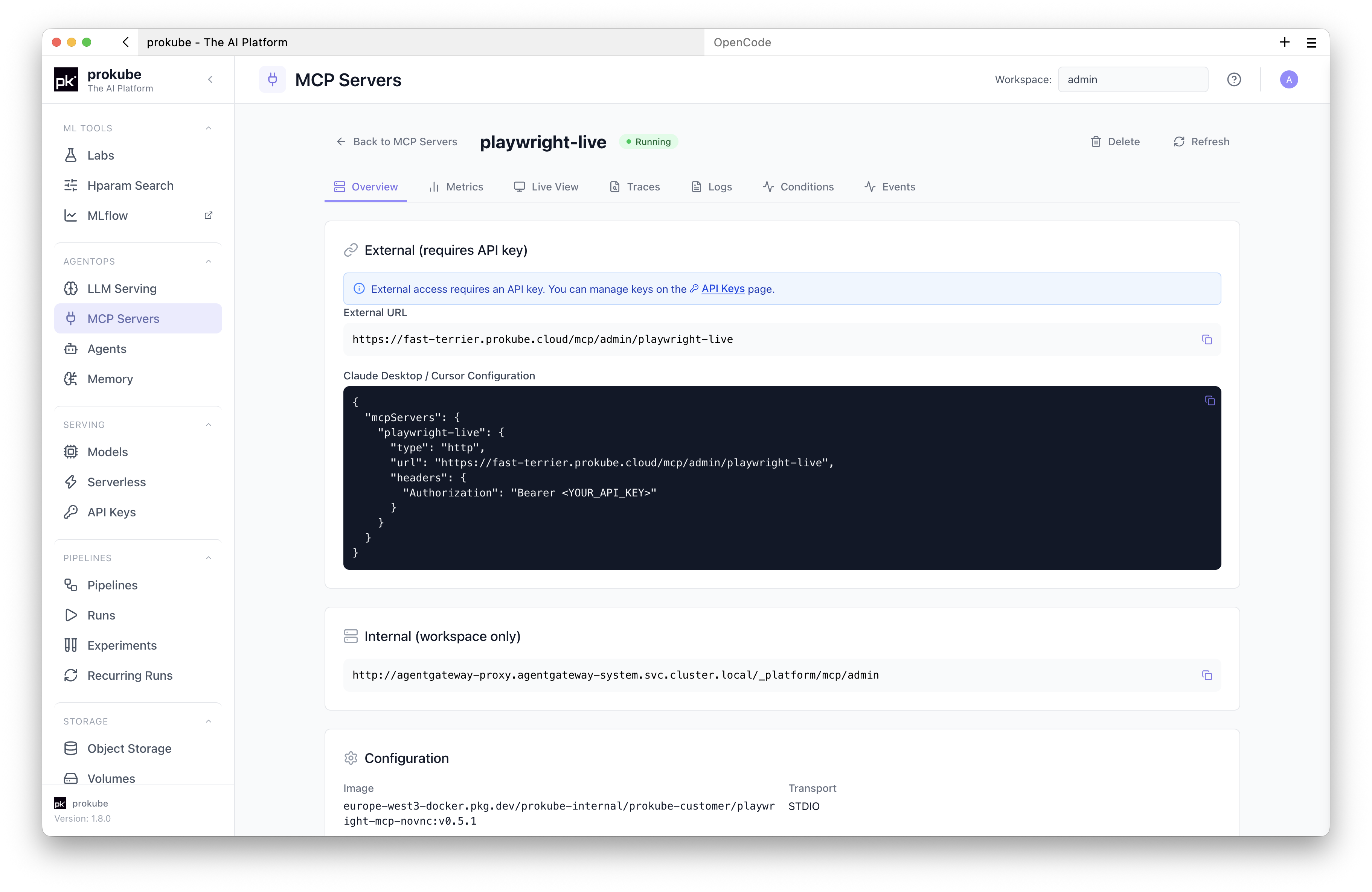
The Deployed Servers table shows each server's status and, when available, its URL. Open a server to see its connection details on the Overview tab.
From the Workspace
One internal endpoint serves the tools of all deployed MCP servers and Memory Stores in the workspace. New servers join it automatically. It accepts calls only from the same workspace and needs no API key.
- kagent agents: open Agents and select the MCP tools when creating or editing the agent. The tools appear under the managed
gateway-mcpendpoint, with no further setup. Add an entry under Tools only to connect an MCP endpoint outside the workspace. - Other workloads: use the internal URL shown on the Overview tab.
From Outside the Workspace
External clients use the server's external URL, https://<your-prokube-domain>/svc/mcp/<workspace>/<server>, with an API key that has access to that server. The Overview tab shows a ready-to-copy client configuration:
json
{
  "mcpServers": {
    "<server>": {
      "type": "http",
      "url": "https://<your-prokube-domain>/svc/mcp/<workspace>/<server>",
      "headers": {
        "Authorization": "Bearer <api-key>"
      }
    }
  }
}
If the key was created with the x-api-key format, send x-api-key: <api-key> instead of the Authorization header.
In OpenCode Labs, add the server's URL from the Overview tab through the OpenCode MCP manager and set any required headers or OAuth settings there. See OpenCode: Add MCP Servers.
Browser Automation Servers
Some catalog entries, such as the prokube Playwright noVNC image, include live browser viewing and trace support.
For these servers, the details page can show:
- Live View for an interactive browser session;
- Traces for recorded Playwright sessions;
- Logs and Events for debugging startup and runtime issues;
- Metrics for runtime monitoring.
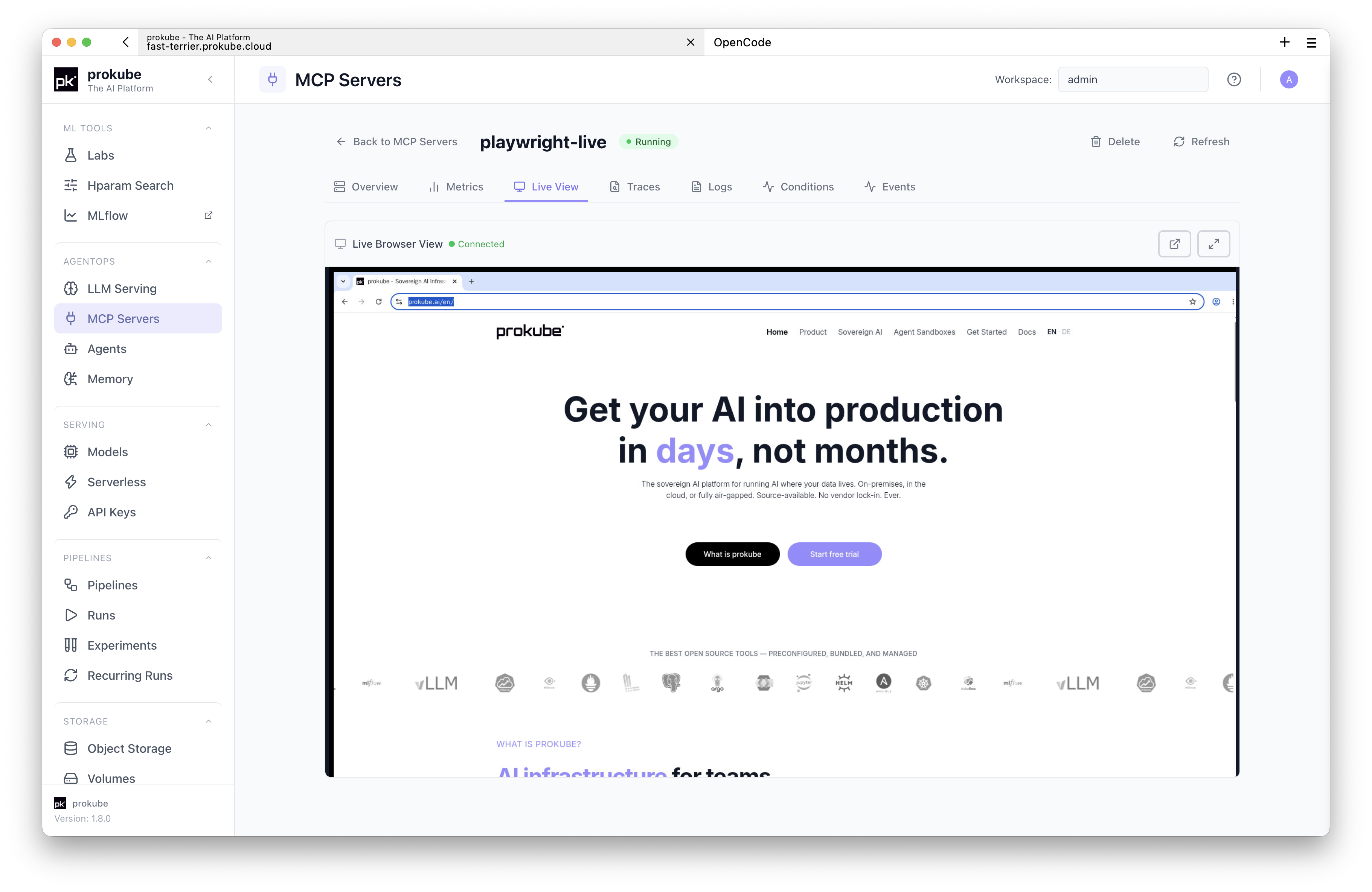
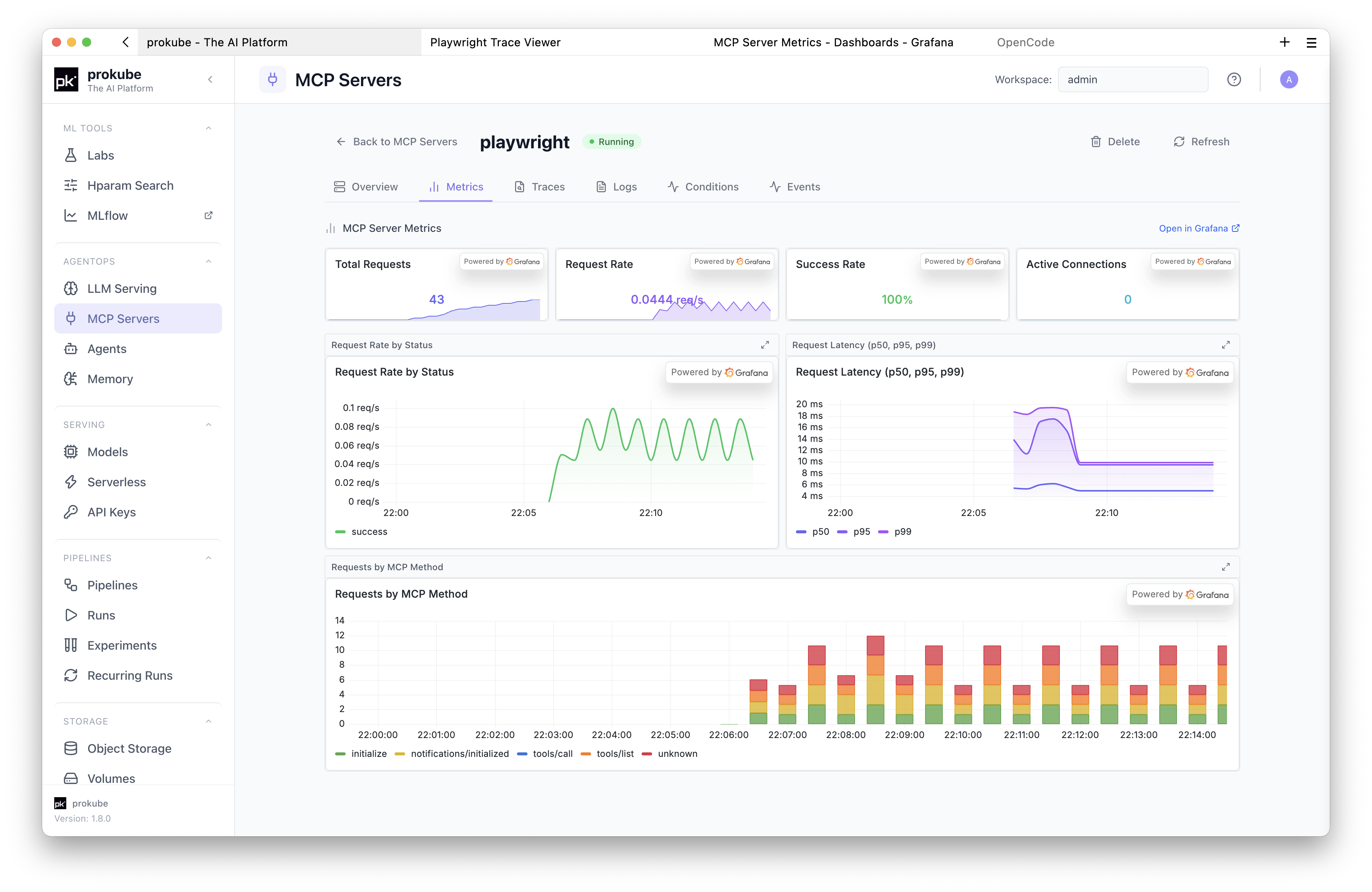
Live view is only available for servers that declare live-view support in the catalog or custom configuration.
Security and Operations
- Deploy servers only in workspaces where the intended users should have access to the exposed tools.
- Store sensitive configuration in Kubernetes Secrets instead of direct environment variable values.
- Prefer Official or internally maintained catalog entries for production use.
- Review third-party images before granting access to internal data or network destinations.
- Avoid root and writable-root-filesystem options unless the image requires them.
- Restricted workspace security policies can reject servers that request root privileges.
- Set resource requests and limits for long-running or shared servers.
- Delete MCP servers that are no longer used.
Troubleshooting
Most checks start on the server's details page: Events show scheduling and image pull problems, and Logs show startup and tool call errors.
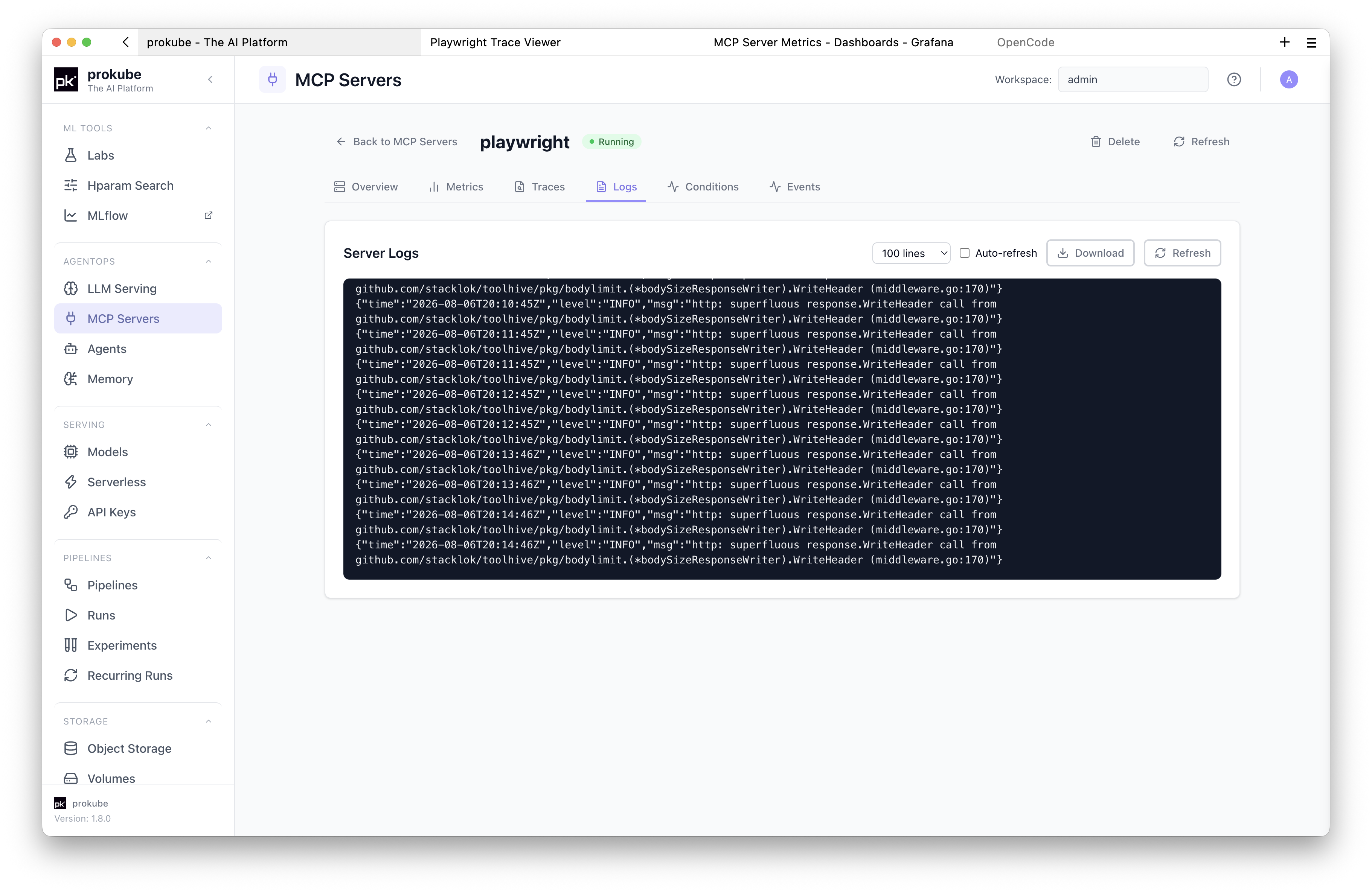
| Symptom | Check |
|---|---|
Server stays Pending | Open the details page and check Events and Logs. Also verify image pull credentials and workspace quota. |
| Image cannot be pulled | Confirm the image name and select the required registry credential for private registries. See Registry Credentials. |
| Deployment is rejected by security policy | The image may require root or a writable filesystem in a restricted workspace. Use a compliant image or ask an administrator to review the workspace policy. |
| Required configuration is missing | Check the catalog entry's required environment variables and provide direct values or Secret references. |
| Client cannot connect | Confirm the server is Running, copy the current URL, and verify the API key is scoped to the MCP server. |
| Tool calls fail after connecting | Check server logs, required upstream credentials, workspace network policy, and whether the tool depends on an external service. |