

Appearance
LLM Serving
LLM Serving deploys self-hosted models as OpenAI-compatible inference endpoints on KServe. It supports text generation, embedding, reranking, text-to-speech, and speech-to-text models. Use it when you want to host a model in the cluster instead of calling an external provider such as OpenAI, Anthropic, or Gemini.
Upstream references
LLM Serving builds on:
- KServe for the serving control plane and OpenAI-compatible protocol
- vLLM and KServe's HuggingFace runtime for text generation and embeddings
- Hugging Face Text Embeddings Inference (TEI) for CPU-optimized embeddings
- faster-whisper for CPU speech-to-text
LLM Serving is an AgentOps capability. For classic model serving with scikit-learn, PyTorch, and similar predictors, see Model Serving. Both features use KServe, but they provide different deployment forms and endpoints.
When to Use LLM Serving
- Host an open-weight model (Llama, Mistral, Qwen, Gemma, and similar) in-cluster instead of calling an external API.
- Serve embedding or reranking models for retrieval workloads.
- Serve text-to-speech or speech-to-text models.
- Provide an in-cluster model for a kagent Agent via an Internal Model Configuration, with or without tool calling.
- Keep model traffic and data inside the cluster instead of sending it to an external provider.
If you only need OpenAI, Anthropic, or Gemini, create a Model Configuration directly instead. See Agents: Choose or Create a Model Configuration.
Deploy a Model
Open LLM Serving in the sidebar. The page lists the models deployed in the selected workspace.
Click Deploy Model and choose a preset, or select Deploy Custom Model to configure the deployment from scratch. Presets provide curated defaults and can be searched or filtered by GPU count, task type, and verification status. Both paths open the same form:
- Deployment Name: unique name in the workspace.
- Model Type: Text Generation, Embedding, Reranking, Text to Speech, or Speech to Text. Typing a HuggingFace-style model ID (
org/model) auto-detects the type. - Model ID: a HuggingFace model ID, for example
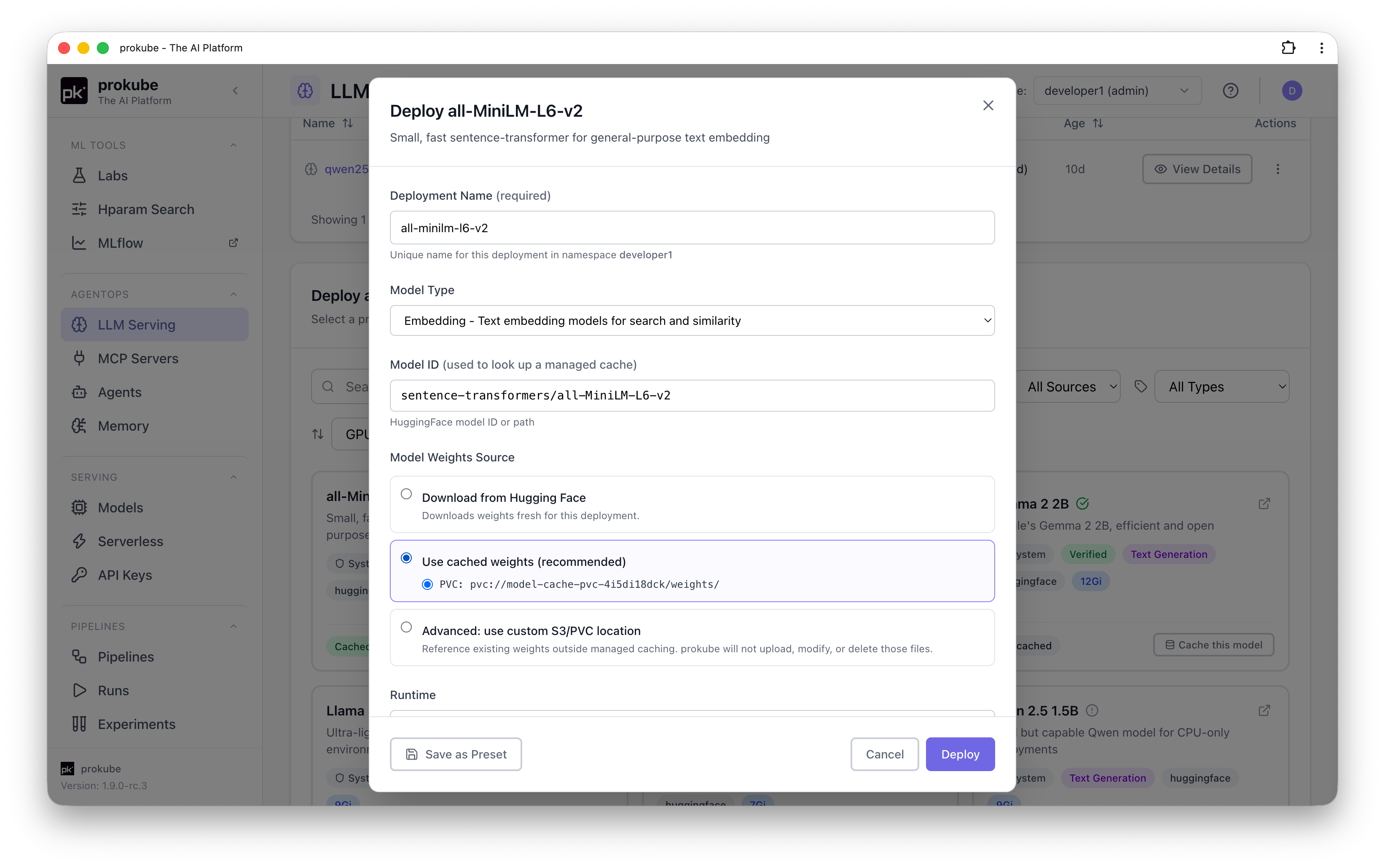
meta-llama/Llama-2-7b-chat-hf. - Model Weights Source: Download from Hugging Face fetches the weights when the model starts. Use cached weights (recommended) appears when a cache for the model is ready. Advanced: use custom S3/PVC location takes an
s3://orpvc://location that you manage yourself. - Runtime: filtered to the runtimes that support the selected type.
| Model type | Available runtimes |
|---|---|
| Text Generation | HuggingFace (recommended), vLLM |
| Embedding | HuggingFace, TEI (CPU-optimized), vLLM |
| Reranking | HuggingFace, vLLM |
| Text to Speech | vLLM Omni |
| Speech to Text | vLLM Omni, faster-whisper (CPU, no GPU required) |
vLLM and vLLM Omni require a custom ClusterServingRuntime.
If the model is gated on HuggingFace, the form warns you before deploying: accept the license on huggingface.co, create an access token, and store it as a Kubernetes Secret named storage-config with key HF_TOKEN in the workspace (see Kubernetes Secrets). Deployment fails without it.
Select Or edit YAML manifest directly if the form does not cover a setting you need, such as extra container arguments.
Cache Model Weights
Without a cache, every model pod downloads its weights from Hugging Face when it starts. For large models, this is slow and depends on Hugging Face being reachable, and it repeats for every redeploy and every new replica. Managed model caching downloads a preset's weights once into storage in the cluster. Later deployments load them from there.
Caching is available for curated presets with a Hugging Face model. For custom models, store the weights yourself and use Advanced: use custom S3/PVC location.
Choose a Destination
| Destination | Behavior |
|---|---|
| Workspace S3 (default) | Stores the weights in the workspace bucket under model-cache/, by default s3://<workspace>-data/model-cache/.... Each model pod still copies the weights at startup, but from in-cluster storage instead of Hugging Face. Any number of replicas can use the same cache. |
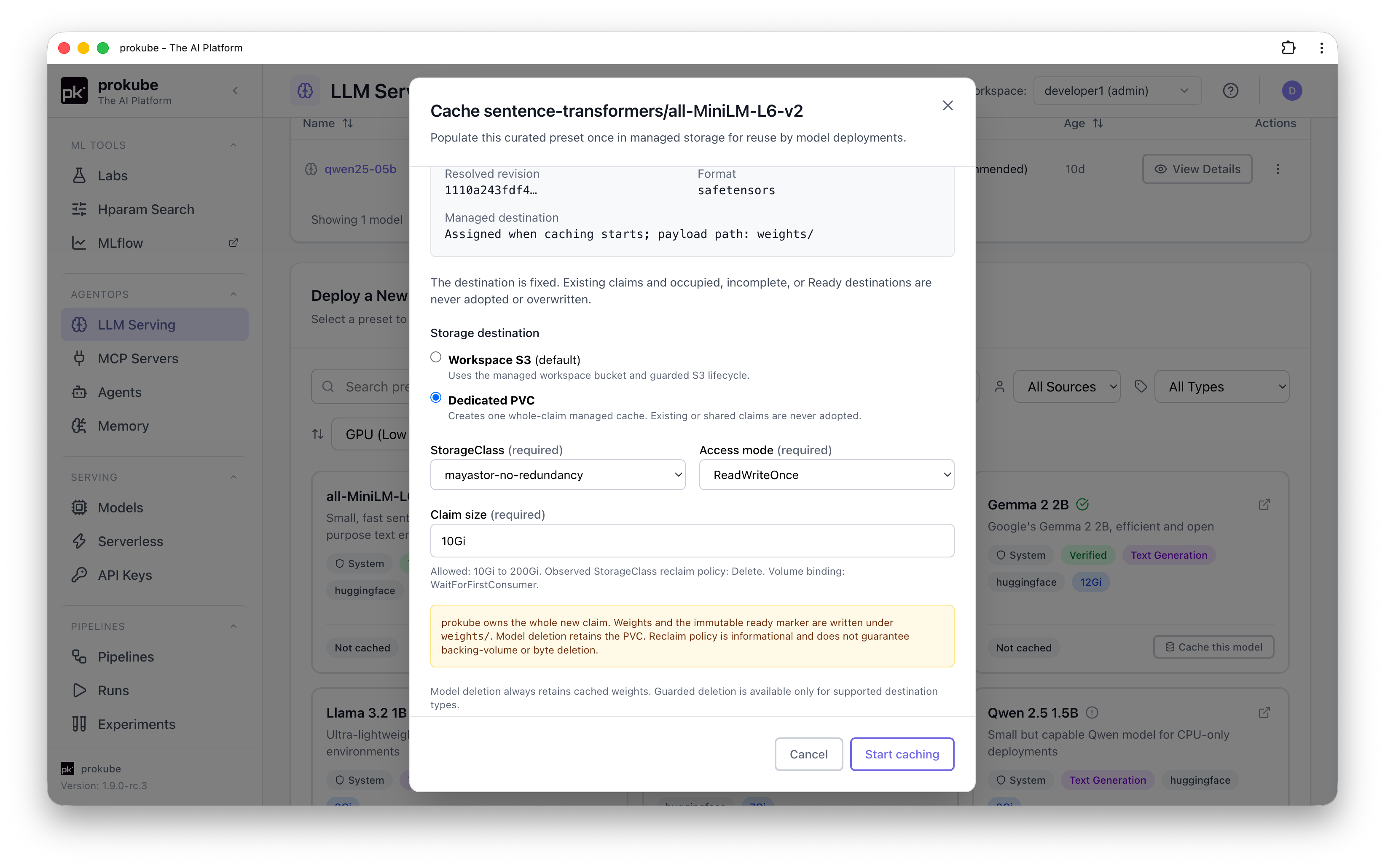
| Dedicated PVC | Available only when an administrator has enabled it. See Model Cache PVCs. Creates a new PersistentVolumeClaim that holds only this cache. KServe mounts the claim read-only into the model pods instead of copying the weights. |
For a PVC cache, the access mode decides where replicas can run:
ReadWriteOnce: the claim attaches to one node at a time. All replicas must run on that node; a replica scheduled on another node cannot start.ReadWriteOncePod: only one pod can use the claim, so the model is limited to one replica.ReadWriteMany: replicas can run on several nodes, if the StorageClass supports it.
If a model needs replicas on several nodes and no ReadWriteMany option is offered, use workspace S3.
Cache a Preset
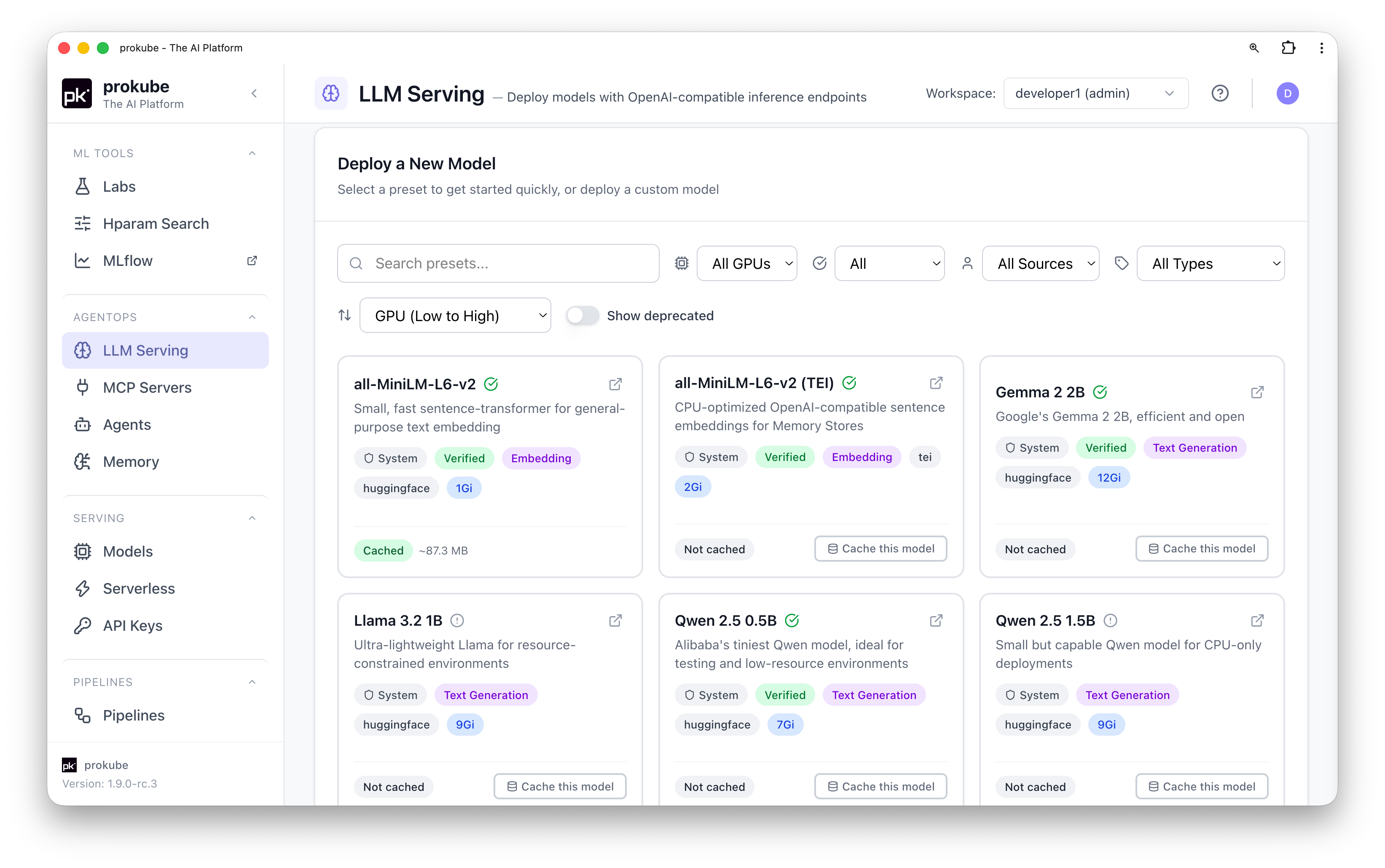
- Open LLM Serving, select Deploy Model, and find the preset. Each cacheable preset card shows its cache status.
- Select Cache this model. The dialog shows the model, the Hugging Face revision it resolved to, and the file format.
- If an administrator has enabled PVC caches, the dialog shows Storage destination. Choose Workspace S3 or Dedicated PVC. For a PVC, select the StorageClass, access mode, and claim size within the displayed limits. Otherwise, the cache goes to workspace S3.
- For a gated model, the dialog shows a Hugging Face credential field. Select the Secret that holds your token. See Gated Models.
- Select Start caching.
The download runs as a Kubernetes Job in the workspace.
Gated Models
Some Hugging Face models, such as Llama and Gemma, are gated: you must accept the model's license on huggingface.co, and downloads need an access token. Public models need no token, and the dialog does not show the credential field for them.
To cache a gated model, store your token in a workspace Secret with the key HF_TOKEN and the label prokube.ai/credential-type=huggingface. The credential field lists only Secrets with this label, so the storage-config Secret that direct deployments from Hugging Face use does not appear unless you label it. Create the Secret with kubectl:
bash
kubectl create secret generic hf-token -n <workspace> --from-literal=HF_TOKEN=<token>
kubectl label secret hf-token -n <workspace> prokube.ai/credential-type=huggingface
Deployments from a ready cache do not need the token.
Monitor a Cache
The status on the preset card shows the state of the cache:
| Status | Meaning |
|---|---|
| Caching | The download Job is running. |
| Cached | The cache is ready. The card shows its estimated size. |
| Cached revision is stale | The preset now points to a newer Hugging Face revision. Models already deployed from the old cache keep running on it, but new deployments cannot use it. Select Cache this model to cache the current revision. |
| Cache failed | The download failed. Open the cache details to read the logs. |
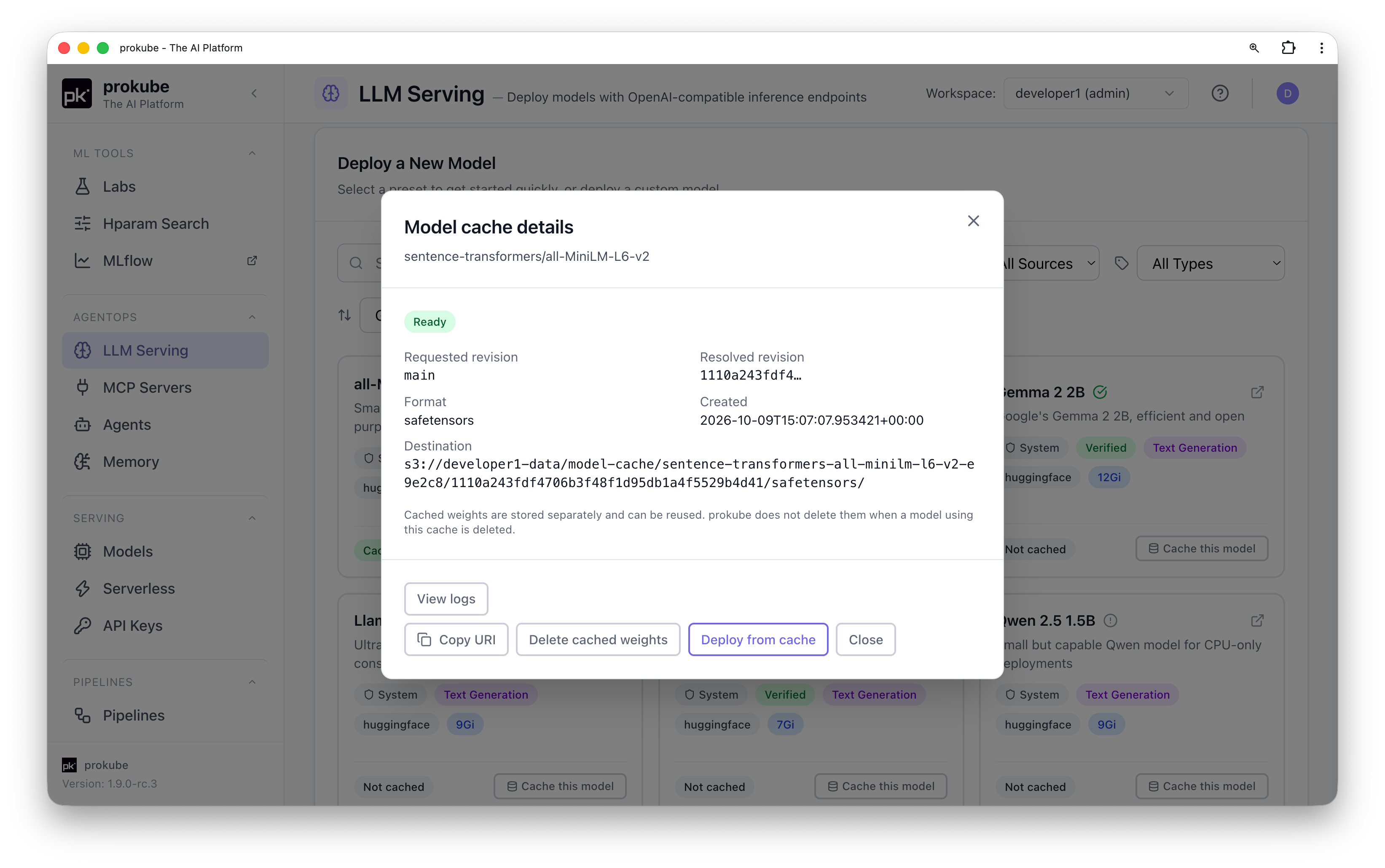
For Caching, Cached, and Cache failed, select the status to open Model cache details. It shows the destination and revision, and offers View logs, Cancel for a running download, and Copy URI for a ready cache.
Deploy from a Cache
Select Deploy from cache in the cache details. You can also open the preset as usual: when a ready cache exists, Model Weights Source defaults to Use cached weights (recommended). If the model has more than one ready cache, for example one in S3 and one on a PVC, select the one to use.
Delete Cached Weights
Deleting a model does not delete its cached weights, so the next deployment can reuse them. To free the storage, open the cache details, select Delete cached weights, and type the cache ID to confirm.
- Cleanup is blocked while a model still uses the cache. Delete those models or deploy them from another source first.
- For a PVC cache, the whole claim is deleted. Whether the underlying volume and its data are removed depends on the StorageClass reclaim policy.
- A failed or cancelled cache keeps its partial data and cannot be reused or overwritten. Delete its cached weights before you cache the model again.
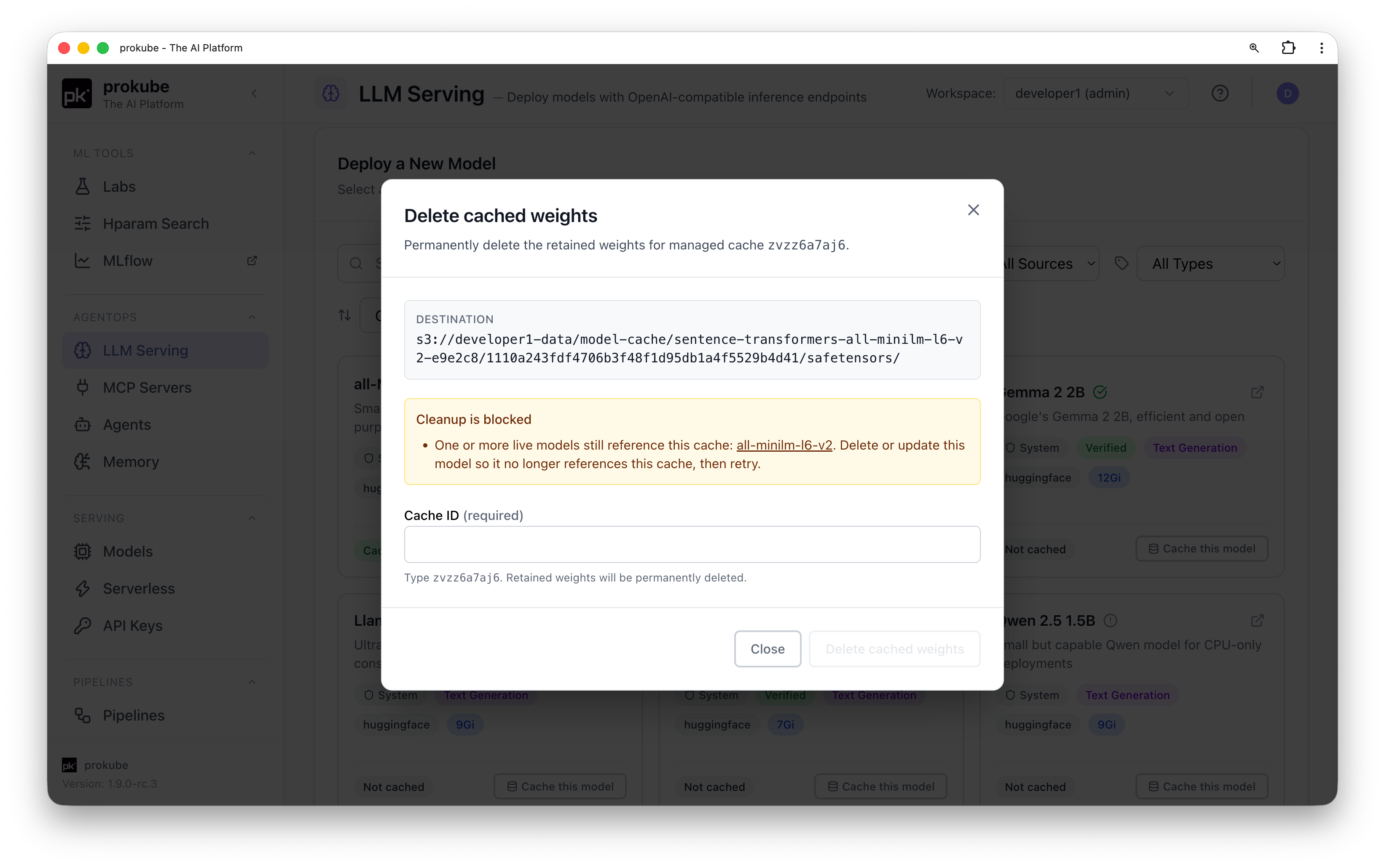
For an S3 cache, cleanup runs as a Kubernetes Job in the workspace, and the dialog shows the Job status and logs. For a PVC cache, the dialog shows the status of the claim deletion.
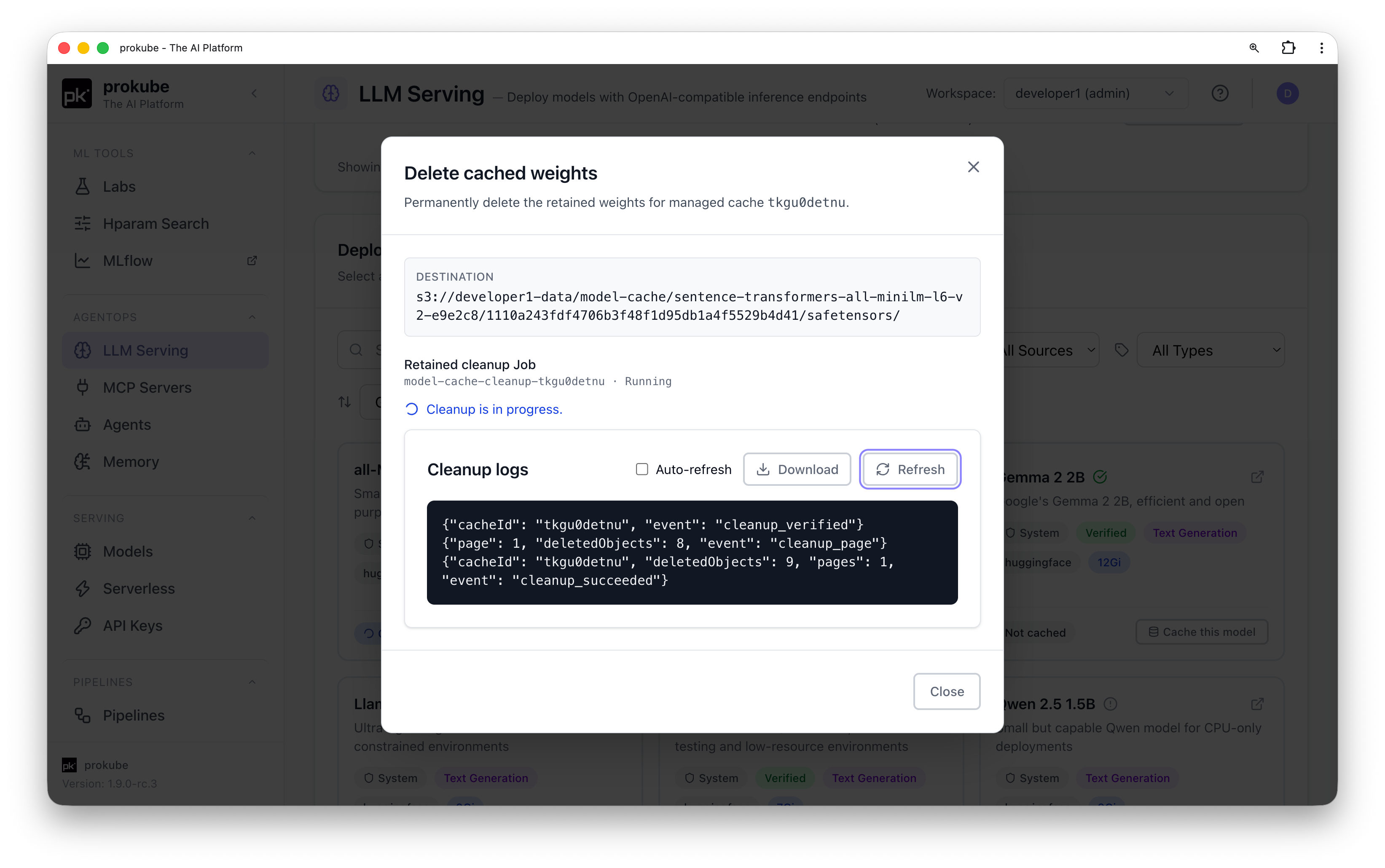
If cleanup fails, some objects may already be deleted. For a failed S3 cleanup, remove the remaining objects under the cache's prefix, then confirm manual cleanup in the dialog. If the dialog shows that the cleanup state is unknown, ask an administrator to check the cleanup Job and the cache record.
Advanced Configuration
The Advanced Configuration section is collapsed by default. It covers:
- Deployment Mode: Serverless (Knative) is the default and supports scale-to-zero. Raw (also called Standard in newer KServe versions) Deployment creates a plain Kubernetes Deployment for clusters without Knative or for KEDA autoscaling. Raw deployments require at least one replica.
- Runtime settings: vLLM-based runtimes support quantization options such as AWQ, GPTQ, and FP8, and data types such as Float16, BFloat16, and Float32. The HuggingFace runtime uses vLLM internally, so these settings also apply to it.
- Resource Requests: configure CPU, memory, and GPU count and type. GPU options come from the cluster inventory. If limits are left blank, the CPU limit defaults to twice the request and the memory limit matches the request.
- Auto-Scaling: configure minimum and maximum replicas, with a maximum of 10. Serverless mode allows a minimum of 0 for scale-to-zero; Raw Deployment requires at least one replica.
- Automatic tool calling: configure support for agents that use MCP tools. See Enable Tool Calling for Agents.
Raw deployments can use HPA for CPU or memory-based scaling, or KEDA for custom Prometheus metrics such as vLLM token throughput. KEDA requires a PromQL query and a scale threshold calibrated against observed traffic. See Serving Autoscaling for the general KEDA pattern in prokube.
Enable Tool Calling for Agents
Not every runtime supports OpenAI-style tool calling. The Enable automatic tool calling option appears only for vLLM and HuggingFace text-generation models. It is not available for TEI, vLLM Omni, faster-whisper, or other model types.
If you plan to attach MCP tools to a kagent agent that uses this model (an Internal Model Configuration), turn this on and select a Tool-call parser matching the model's tool-call format:
| Parser | Matches |
|---|---|
| Hermes | Qwen 2.5, QwQ, and Nous Hermes formats |
| Qwen3 XML | Qwen3-Coder tool-call format |
| Llama 3 JSON | Llama models using JSON tool calls |
| Pythonic | Llama models using Python-style tool calls |
| Mistral | Mistral tool-call format |
| DeepSeek V3 | DeepSeek V3 format |
| DeepSeek V3.1 | DeepSeek V3.1 format |
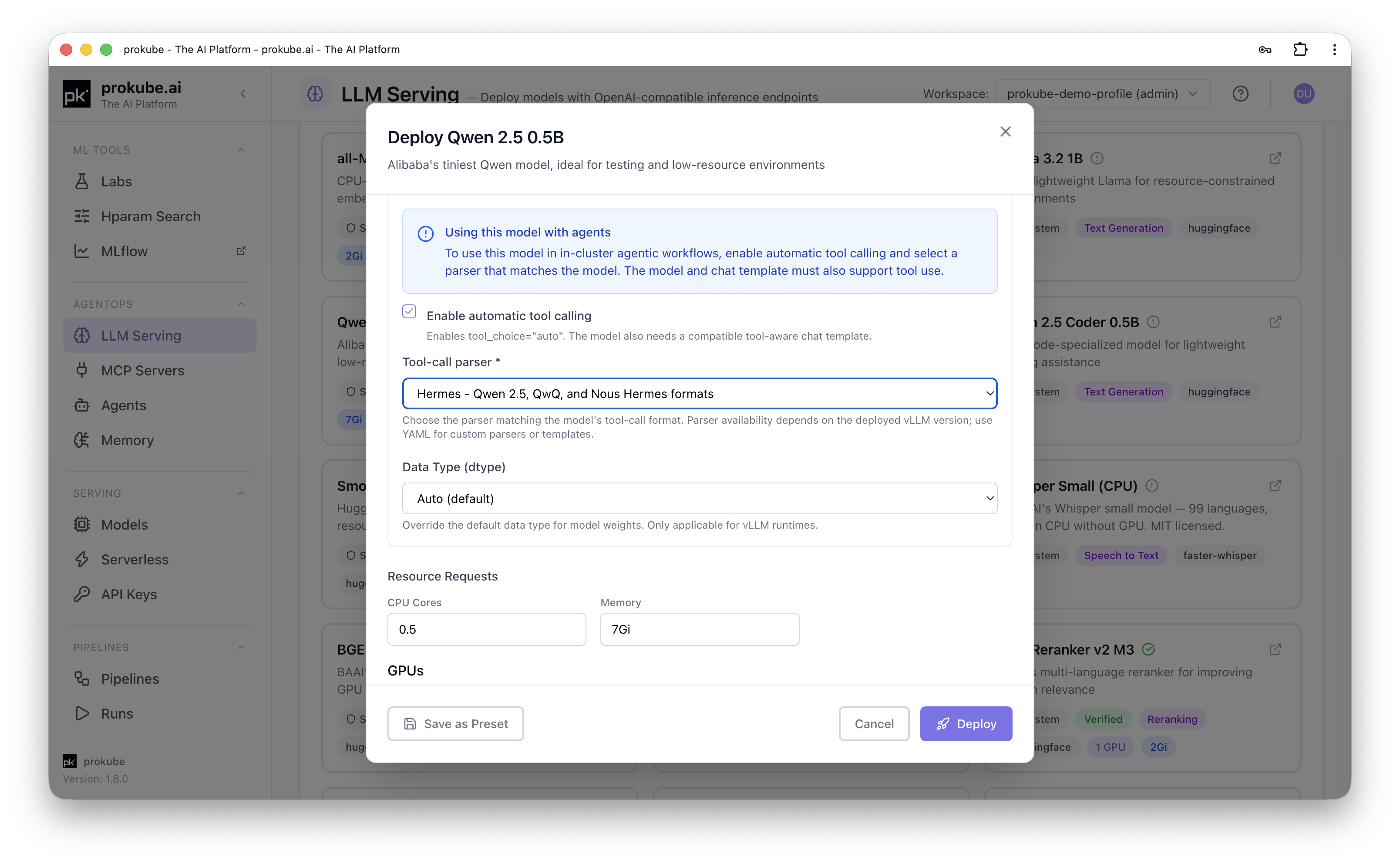
This list matches the parsers built into the platform's currently deployed vLLM runtime and may change as that runtime is upgraded; use YAML editing for a parser or chat template not listed here. Without a matching parser, an agent's tool calls against this model will not work reliably even though the Model Configuration and deployment are otherwise valid.
Test a Deployed Model
Open a Ready model from the list. Text-generation models have a Chat tab with a built-in streaming chat tester. Embedding and reranking models have an API tab. Audio models have an API or Test tab, depending on the task. These tabs show the endpoint path and a ready-to-run curl example for the supported operation.
The Configuration tab summarizes the model's settings and endpoints. For troubleshooting, use the Metrics, Logs, and Conditions tabs. While model weights are downloading, a storage panel shows download progress and errors instead of the usual tabs.
Edit a Model
From the model list or detail page, select Edit to change Model Type, Quantization, Data Type, tool-calling settings, resource requests and limits, or auto-scaling. Model ID, runtime, and deployment mode are fixed after creation. To change them, delete and redeploy the model or use the YAML tab.
External Access
The endpoints on the model's Chat and API tabs are external URLs served through Agent Gateway. External clients, such as SDKs, CI jobs, and applications outside the cluster, call them with an API key scoped to the model. See API Keys. The URL depends on the model type:
| Model type | URL pattern |
|---|---|
| Text Generation, Embedding, Reranking | /svc/ai/<workspace>/models/<deployment-name>/v1/... |
| Text to Speech, Speech to Text | /svc/serving/<workspace>/<deployment-name>/openai/v1/audio/... |
Models granted through External Models use the /svc/ai pattern with the route ID chosen in the grant. They are not listed as individual services on the API Keys page, so they need a Bearer-format key with All external AI models, All AI models, or Full workspace access.
To use a deployed model from a kagent agent instead of an external client, create an Internal - OpenAI-compatible Model Configuration and pick this model from the LLM Serving model dropdown. See Agents.